
 REFERENCE LIBRARY


 Getting to know the Data Dictionaries

In many situations more than one table is used in a data entry view, dialog or other component. As I told in lesson 2, a DDO can be connected to parent DDOs and child DDOs. Connecting DDOs makes data handling more complex than with a single DDO. In this lesson I’ll discuss the use of parent tables in DDOs. And the lesson after it will be more specifically about child tables.
Parent relationships
Relationships are used by Data Dictionaries during finding and saving of rows. After a find, the related row from the parent table is also found and made available to display and edit. This is performed by a relate operation. During a save - to enforce data integrity – the related-to column data is moved into the foreign key column. This is performed by an attach operation.
Saving a row in a table where the table has a relationship with a parent table may also save a row in the parent, and perhaps grandparent table(s). The parent row is not saved if a save is not needed.
The main reason that parent relationships are managed via Data Dictionaries is to ensure that the child row belongs to a certain parent row and vice-versa.
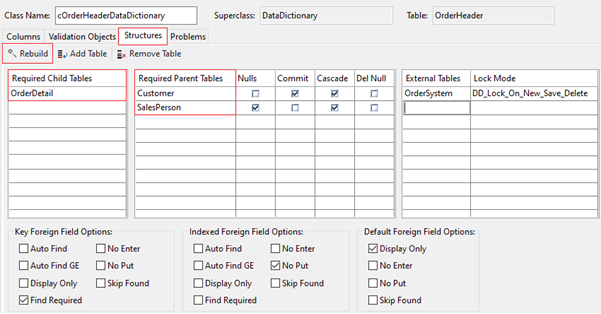
DD Modeler - Structures
Let’s have a look again at the Data Dictionary Modeler and go to the “Structures” tab page. This section is used to define the database structure for the table you are editing. It should show all related parent tables and related child tables. And it is crucial that these are correct, because this information is used by the Studio to build and connect proper DDO structures in your components. And at runtime, this information is used to perform validity checks and to intelligently lock tables during save and delete operations.
Conveniently, in most cases the Studio will do all of this work for you, based on the table relationships that you already have created. For example, if you create a Data Dictionary for a table that has relationships defined, the correct Required Child Tables and Required Parent Tables are automatically listed for you. Required here means: required in the DDO structure.
And in case you messed it all up here, you can click on the Rebuild button to start over with the initially generated lists.
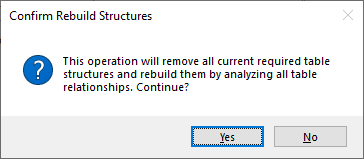
You can add and remove tables to these lists by hand. But when you have defined proper relationships between the tables, there is no reason to, and you can rely on the automatically generated lists. However, if you wish to build your system with local relationships or no table relationships at all, you are strongly encouraged to fill these lists correctly yourself.
Required parent tables
Let’s now focus on the list of the required parent tables.
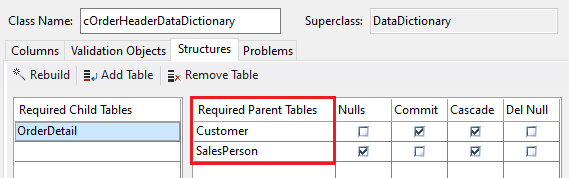
Each row in this table defines a required parent. In source code, it means an Add_Server_File statement. As you can see, there can be multiple parent tables related to the table.

These lines were automatically added to the DD class by the DataFlex Studio when the relationships were defined in the table editor. So, it is not something that you will have to set, but the lines must be there to inform the Data Dictionary about it, and they will be used by the Studio wizards and the DDO Explorer.
Foreign key column
Now let’s look at an example of using a parent table in a view. Here is a DDO structure with OrderHeader being the main DDO and the Customer table is a parent table. Now, what would happen if I would select a foreign key column in the DDO Explorer and drag it onto a view where an Order Header record can be maintained.
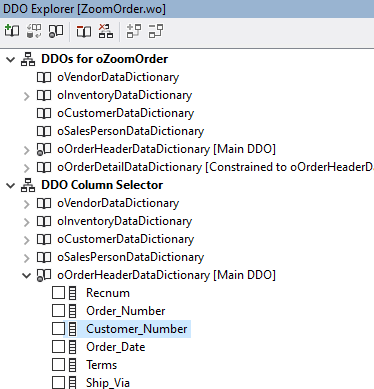
Customer_Number is a foreign column in the OrderHeader table, relating to the Customer table, which is indexed on the Customer_Number column. If I would drag Customer_Number onto the view, you would perhaps expect to get this code for it:

However, that is not the case. It puts the parent table column there, so the column of the Customer table.

This can of course only work if the DDO’s are constructed correctly, which you can do with the DDO Explorer, as explained in lesson 2. The DDO code would look something like this:
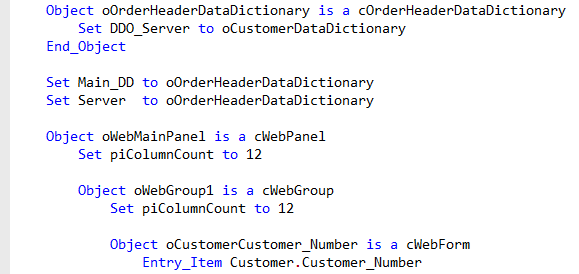
This way, when the focus is in an indexed parent table column data entry object, Customer_Number in this case, a user will browse through the parent data. More important is that without this replacement, users could enter any value in this Data Entry Object which is then during a save overwritten by the information from the parent table. So this way, parent-child relationship is preserved.
DDO_Server property
As mentioned in lesson 2, in the view component, or dialog or report, for each table that is needed, a Data Dictionary Object must be defined, and they must be connected correctly. This is done using the DDO_Server property. As shown in this example, DDO_Server must be set in the child, to connect it to the parent. With multiple tables, this can be complex, and the Studio wizards or the DDO Explorer can generate this structure for you.
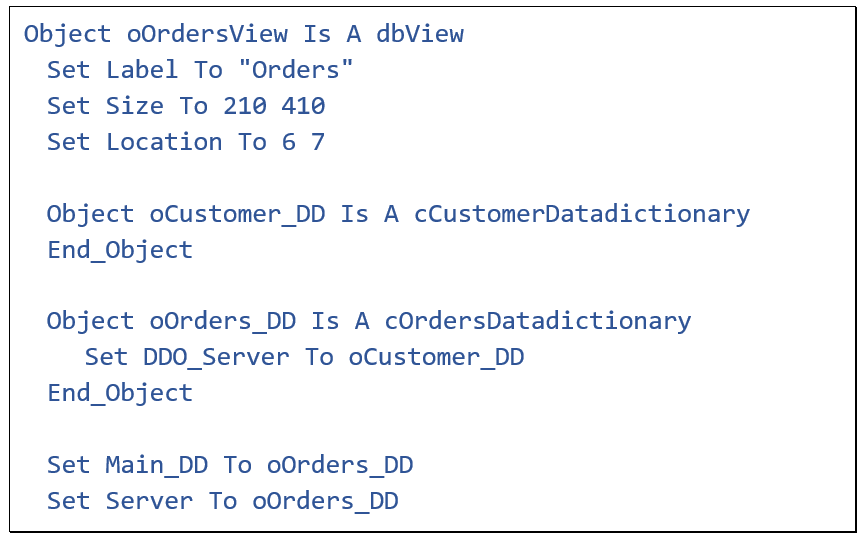
It is important to know that the parent DDO must be defined before the child DDO. Now, after a find operation in the Orders_DD, the correct customer row is loaded via the Customer_DD.
What would happen in the next example when I would leave out the first DDO_Server statement?
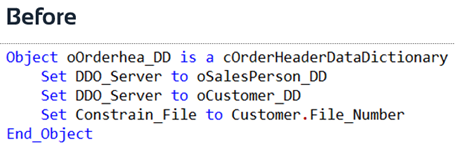
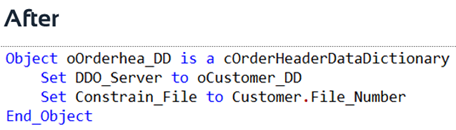
While the SalesPerson DDO itself is not removed, its link with OrderHeader is removed in the local DDO structure. The results of this, is that it avoids SalesPerson records to be found while finding a row in the OrderHeader table. So this makes it a little bit faster.
Set_Relate
Usually, relationships between two tables are defined in the table editor, as shown here.
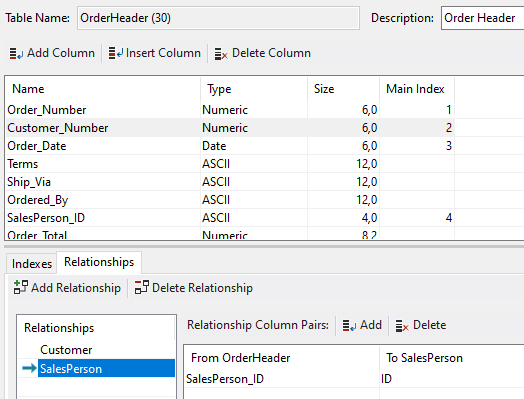
One or more columns from a child table are connected to one or more columns of a parent table.
This global table relationship can be changed using a Set_Relate instruction in the Data Dictionary class.
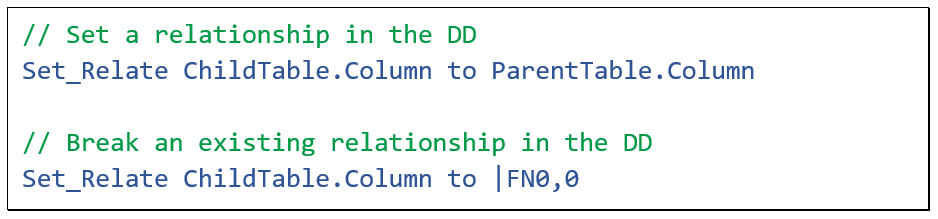
The command also makes it possible to break an existing relationship. However, you should only use this in exceptional cases.
pbUseDDRelates
It is better to manage this behavior via the DDO. You could use the pbUseDDRelates property, which determines if the local DD-relates, or the global table relates should be used. The default is false, which means that the global relates, as defined in the table editor apply. If you set it to True, it turns off the global relationship between this DDO and its parent DDOs at a local level, so in this view, or module. This avoids that one module can break the working of other modules. It will then use the relationship data that is set via the property Field_Related_FileField.

In this example the ProductGroup is an alias of the Product table. A global relationship would cause an infinitive relationship. This problem is solved by this code.
There is another situation where you could use local DD relates. And that is when in a particular view, you want to use a Data Dictionary class with most of its existing relationships, but cancel just one or more specific relationships. But be careful, because you might be bypassing validation rules and thus allow for inconsistent data. So, only do this when you really have to and when you know what you are doing.
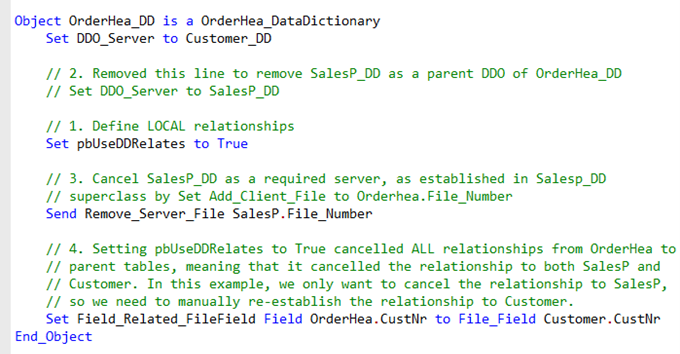
It involves four steps to do this, and I will walk you through it by using a code example.
Remove_Server_File
First, set the property pbUseDDRelates to True to cancel all existing relationships from the current DDO. Then, for each parent to unrelate, remove the DDO_Server statements, else the local DDO relationship is established. Also, for each parent to unrelate, remove the parent table from the server-table list by sending Remove_Server_File. And finally, for each parent table relationship you want to keep, manually re-establish the relationship using SetField_Related_FileField.
Adding the Remove_Server_File statement will avoid the “required server file is missing” error when saving the child.
Optional relationship
Sometimes it is desired that the relationship to the parent table is optional. This means that it is allowed that a foreign key field in a child table record has the value Null. By default this is not allowed. For example, when during the registration of an order you might not know the salesperson and want to fill this in later. Then it can be left empty at first.
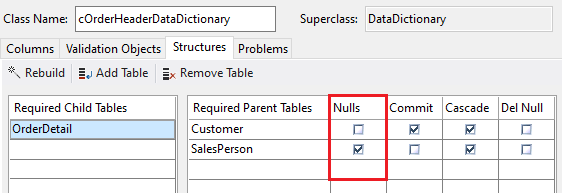
For this, the "Nulls" checkbox next to the parent table needs to be selected. It generates a line of code like this in the OrderHeader Data Dictionary class. This makes the presence of a sales person parent record optional.

Elsewhere, you could query whether this is set or not by calling the IsNullParentAllowed function. In fact, this function is actively invoked by the framework itself to determine whether the parent relationship is optional. And it can be augmented to make it more dynamic; to base its result value on some condition.
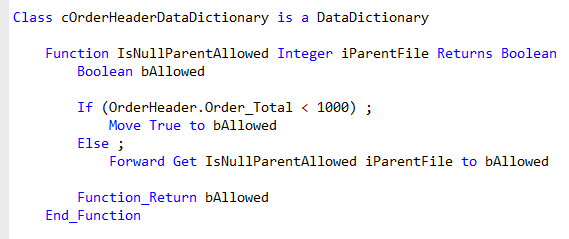 For example, for an order below a thousand dollars, a sales person is optional, and else it is always required. To do that, you could add this code to the OrderHeader DD class. And at the same time NOT make SalesPerson an optional parent table of OrderHeader. So the Nulls checkbox is not checked. So, now a sales person is always required unless the Order total is below 1000 dollars.
ParentNoSwitchIfCommitted
Next to the Nulls checkboxes is the commit checkboxes.
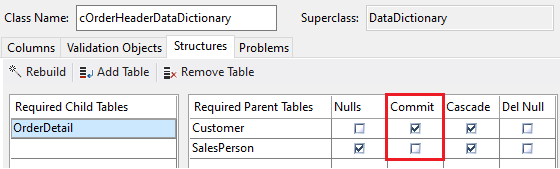
This can be used to indicate that the user cannot switch to a different parent row once the row that is being created is saved. That can be handy, for example to force that the Customer_Number of an order can never be changed again. So, it should be set in the main table DD, OrderHeader in this case, not in the parent DD, Customer.
By default, it is not set, which means that it is allowed to select a different parent row. For example, to change the department number of an employee in an employee table.

Switching this checkbox on sets the property ParentNoSwitchIfCommitted to True.
There may be cases where you want a more dynamic approach. For example, a change of the customer could be allowed as long as the order is not finished or in production. This could be done by overriding the IsCommittedParentChangeAllowed function. This function is part of the Data Dictionary base class, which you can find in DataDict.pkg in the packages folder.

It is called right before the commit and as you can see, it gets the ParentNoSwitchIfCommitted value and will return false if the checkbox is set. So you could implement your own IsCommittedParentChangeAllowed function in the DD class, for example like this.
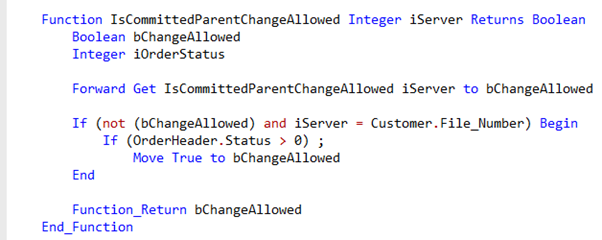
Note the Forward Get statement to the original IsCommittedParentChangeAllowed function. What will happen now is that if the ParentNoSwitchIfCommitted checkbox is checked, it will also look at the order status. And if that status allows a change, the function will return True after all, even though the checkbox is checked. And this means that a change in a foreign key column is allowed in the table.
Foreign table entry options
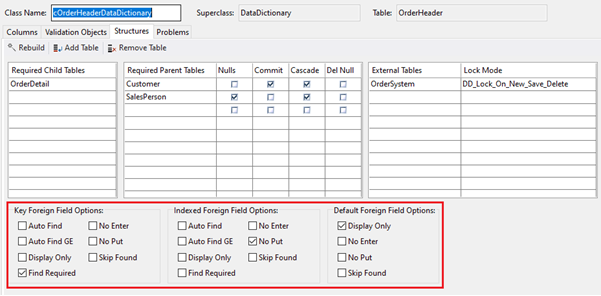
In the Data Dictionary Modeler, on the tab page Structures, there is a list of foreign table entry options. This allows you to assign additional or different entry options to a field when that field is used as a parent field.
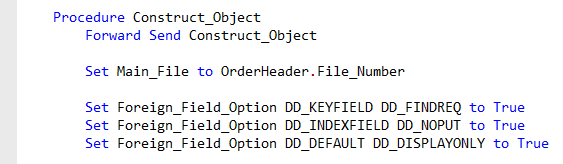
For example; the end-user should be required to select an existing parent row. Or the input of non-indexed columns should be disabled. The options shown here are the default options and while they can be changed, of course, most often you won’t have to touch them.
In code, it sets the Foreign_Field_Option property. It is done in the Construct_Object procedure of the DD class.
Allow_Foreign_New_Save_State
If you would want to ignore these foreign table options in a particular DDO, which could be useful in a data entry view, then set the Allow_Foreign_New_Save_State property in the DDO to True, as shown in this example. Do not set this property in the DD class.
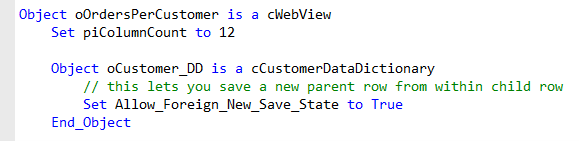
What this actually does, is that it allows creating a new row in a parent table while editing or creating a new row in the child table. For example, you may have an order entry system that allows you to create and save a new customer at the same time you are creating and saving a new order.
In the next lesson we’ll go into the other side of the parent-child relationship and focus on tables being a child table.
