
 REFERENCE LIBRARY


 Getting to know the Data Dictionaries

Before we dive into finding, updating and deleting records via the Data Dictionaries, it is important to realize that Data Dictionaries Objects have their own buffer, which is called the local buffer. In addition, we have the global buffers, sometimes called file buffers, which are always there, one for each table that is opened.
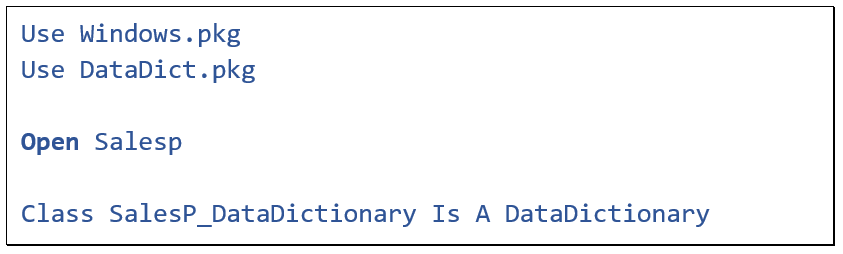 Global file buffer
The Open command – if successful – creates a global buffer to hold one row of the table in memory. Initially, the global row buffer is empty unless the tables’ attribute DF_FILE_IS_SYSTEM_FILE is set to true, and in that case the only row from the single row system table is automatically loaded in the global row buffer. But not with regular tables.
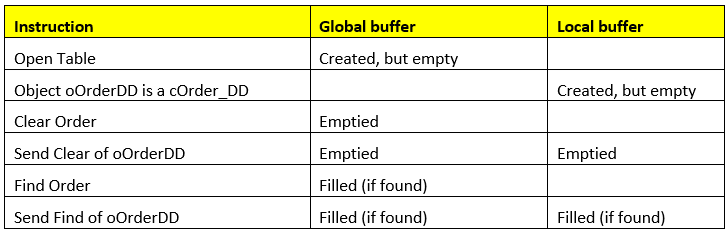
 Local DDO buffer
Next to a global table buffer there can be local buffers.
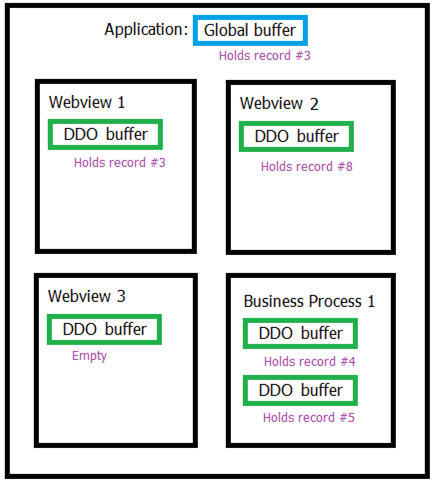
Each time a Data Dictionary object is created, a new local buffer for the table gets created. So applications with multiple views have multiple DDO structures, one per view, and each DDO structure can have the same table in it, each with their own local buffer. And each can have a different, or the same, row from the table in memory.
Multiple DDOs for the same table in one component is not supported, except for business processes and tab dialog views. The global buffer may contain the same information as the DDO's local buffer, but they may also differ.
Local DDO buffers allow you to work around the restriction of a single global file buffer. Access to the local DDO buffers is done via the Data Dictionaries, which at the lower level manage the global file buffers. A DDO will make sure that it has the correct data in its buffer before it proceeds. This is all automatic. The DDOs notify the Data Entry Objects that they need to display data by sending the refresh message to the DEOs.
There are times when the global file buffers will not contain the same record as your DDO. In a multi-view, data entry application, it is possible that the global buffer will not contain the data you think it does. If a user switched views in the middle of a process, it is possible that the record that the DDO thinks it is working with is not the record that is in the global buffer. This doesn’t bother the DDO, but it may get you in trouble in Windows applications if you have DEO code that is based on the contents of a global buffer. In Web this is not an issue because web apps are single view based, and when the client starts an action towards the server, the buffers are all refreshed.
The best way to deal with this is to always use the local DDO buffer values. This way the complexity of dealing with global buffers is hidden from you.
Here are some code examples of how to access the local DDO buffer:

To get the value from the DDO buffer, do a Get Field_Current_Value. And for changing the value in the DDO buffer, do a Set Field_Changed_Value.
We will go into this in detail in the next lessons when we will be talking about find, update and save via the Data Dictionaries.
For now I want to tell you a few more things about buffers.
Refind_Records
If you want to make sure that your global buffer is synchronized with the DDO buffer, you can send the message Refind_Records.
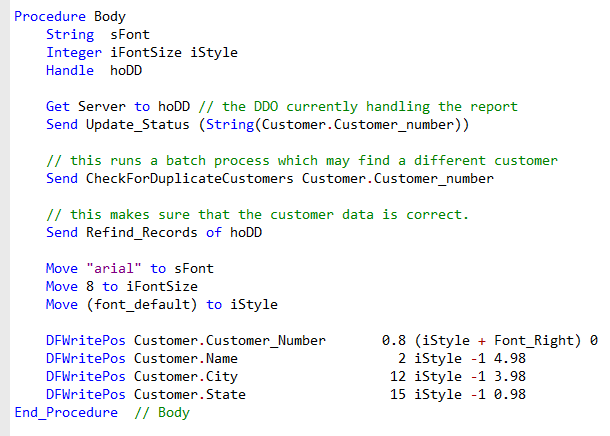
This checks to see if the record in the global buffer is the same as the record in the DDO buffer. If not, it will re-find the record. This updates the global buffer, ensuring that the global and DDO buffer are synchronized. It performs this check for the DDO’s table and all parents, grandparents, etc. Although I briefly show an example here from a Windows application, you should rarely need it.
When use global buffer?
There are cases where you should use the global file buffer. Most important is when you are going to do a find in a table. Then you must seed the global buffer. Seeding the local DDO buffers will have no effect.
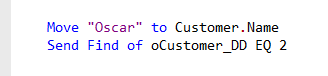
This often causes confusion with new developers, so take good note of this. One reason is that the local DDO buffer should not change by just doing an attempt to find a record. And it has the advantage that it allows you to perform a find without changing the current data in your DDO. Finds will be subject of the next lesson.
Next, you can use the global buffer to retrieve column values if you know that a column is unchanged. In that case, the following two code examples would return the same result.

It is syntactically simpler to directly access the global file buffer, which is why this is often used, for example in reports, where data is never changed. When in doubt, always use the DDO buffer.
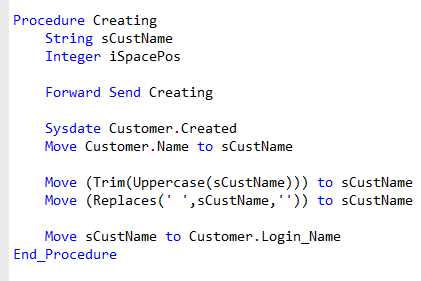
Finally, the global buffer should be used when manipulating data within DDO events. During DDO operations, such as save, find, delete and clear, various events are triggered. When these events are called, the Data Dictionary has already placed the correct data in the global buffer.
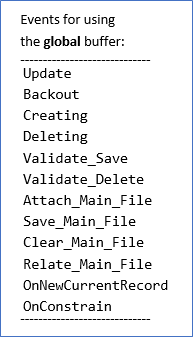
So, if you create event augmentations, you must always refer to the data in the global buffers. In some cases, the data in the global buffer will not be the current field value – but it will be the right value for the event. For example, the Backout event must be called with the original data values and not with changes you might have made in your DDO. Here is the list of DDO events that require that you use global buffer data:
And here is an example of augmenting such an event and using the global buffer. So just remember, if you use the global buffer in these events, you will always be changing the right data at the right time.
Using the local buffer
Having mentioned these, let me say again that in all other cases you should use the local DDO buffers. I’ll now finish off with three examples, although in the next two chapters we’ll look more closely at find and update operations.
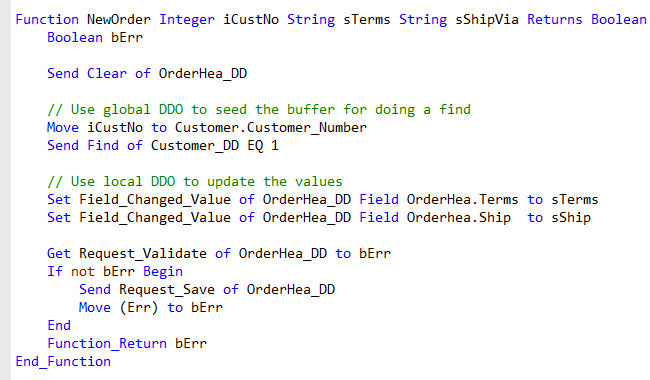
In this first example the local DDO buffer is updated in anticipation of saving a change. In most cases you will use Set Field_Changed_Value to do this. If you would move your changes directly to the global buffer, they would be overwritten by the values in the DDO buffer right before the save, which is probably not what you want.
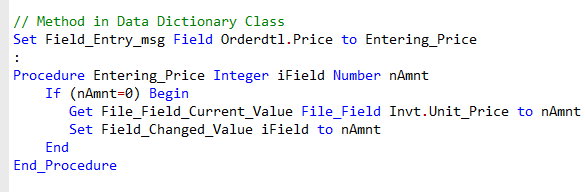
Next example. If you create custom field validation, exit or entry methods in your Data Dictionary class or your DEO, like in this example, you should use the DDO buffer to retrieve a column’s current value. Here, File_Field_Current_Value is used, which gets the current value of a foreign table column. This DD class is about OrderDetail, but it gets the value of the inventory record. Please note that this is an example from a Windows application. This event will not fire in web, because of the client-server nature of web applications.
By the way, you might have noticed that we have Field_ messages and File_Field messages.
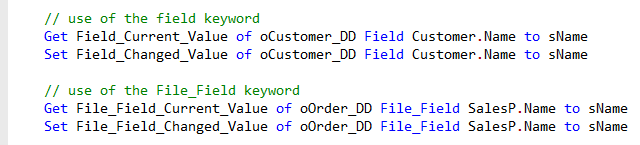
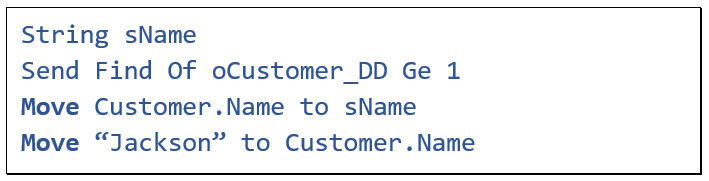
Field_ messages use the Field keyword, and should be used when the Data Dictionary Object receiving the message owns the field. In this code snippet, Customer dot Name is defined within the oCustomer_DD.
File_Field messages go with the File_Field keyword and should be used when the Data Dictionary Object receiving the message may not own the field – the field may be owned by one of its parent or child DDOs.
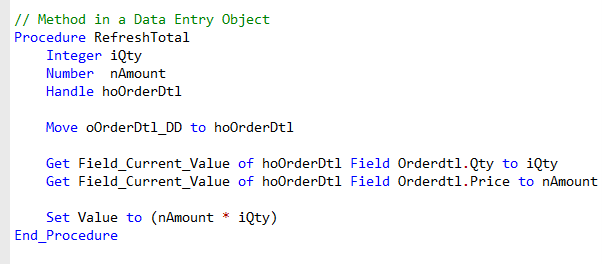
And finally, here’s an example of a procedure in a Data Entry Object that retrieves a DDO’s current column value via the local DDO buffer. You can do that by using Get Field_Current_Value.
That’s the end of this lesson. The next lesson is about finding records through the Data Dictionary.
