
 REFERENCE LIBRARY


 Getting to know the Data Dictionaries

Filtering of data is an important topic in Data Dictionaries, because you don’t always want to retrieve or show all records from a table, but only records that meet certain criteria. In DataFlex such criteria, or filters, are called constraints. We identify two different situations:
Relational constraints
Let’s first look at the first situation. As I told in lesson 8 on child tables, the Constrain_File property can be set in a child DDO to link it to a parent DDO. This is a relational constraint and it is the easiest way to enforce a relational constraint.
 Only the child rows that relate to the current parent are retrieved. You can create this constraint with the DDO Explorer. I explained the DDO Explorer in lesson 2.

In this example, you can see that OrderHeader is constrained by Customer. In code, it means that Constrain_File is set in the OrderHeader DDO, to the Customer table.
By default the DataFlex Studio and the wizards assume that all direct child DDO's of the main DDO should have a relational constraint, which is why the DDO Explorer generates this by default.
You can change this to remove the relational constraint. You can just remove the line of code, or do it in the DDO Explorer via the "Add/Change Constraint" option from the floating menu. And then selecting the “None” option from the list.
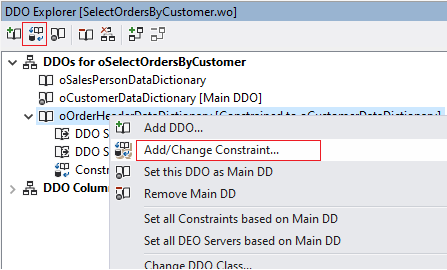
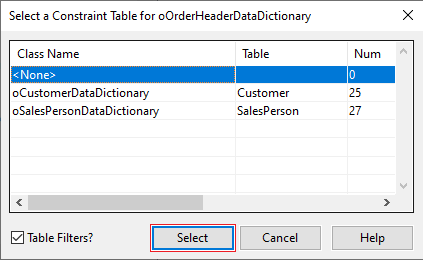
Removing this constraint would cause all OrderHeader records to be retrieved, instead of being filtered on the current Customer. Normally you don’t want this.

This example shows that the Student DDO is constrained to two parents. Note that the Constrain command is done twice. This command is what the Constrain_File property under water actually executes.
By the way, if you have a relational constraint set, then the Clear message stops there. So, if you would do a clear on a child DDO, then the active parent would not be cleared. Without the relational constraint, parent DDOs are cleared as part of the child’s clear operation.
Non-relational constraints
Okay, I started this lesson by mentioning two situations of filtering. The second one is non-relational constraints, which is all other constraints than the ones I just discussed. You could for example constrain the retrieval from a products table to products that are active only.
These constraints are always coded inside an OnConstrain method using individual Constrain commands and there should always be a Forward Send OnConstrain in it. See this example.

Most often you code this in a DDO, not in the class, because filtering is often view based. But you can program them in the class, when the constraint should be applied in the whole application.
Each Constrain command results in fewer data. The order of the Constrain commands is not important.
You can use the Constrain command to filter in various ways. The general format is: The Mode defines the compare mode, such as equal, greater than, matches, etcetera.
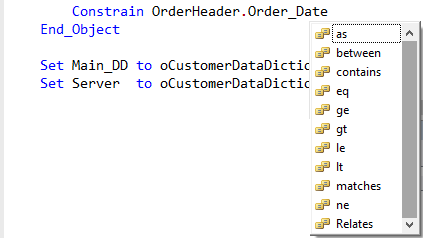 Here, the full list of possible modes is shown, and some examples were shown in the previous code snippet. There are a few that need a little explanation.
The first one, “As”, means that an expression will be used to filter on. I will explain this in a couple of minutes. “Contains” tests whether the column value has a substring that is equal to the test string. Note that it is case-sensitive and that it does not support wildcards.
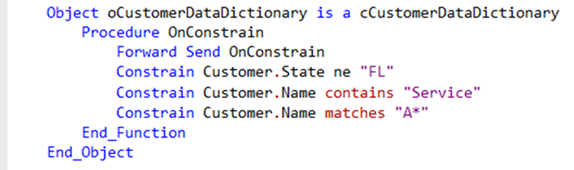 “Matches” does support the wildcards asterisk and question mark in the search value. But beware that the asterisk is very basic: any character following the asterisk is ignored. So it can only be used to find something that starts with a particular string. The question mark can be anywhere in the search string. Let me show you an example where the end user can enter search criteria to dynamically filter the weblist in a standard select view.
[Start Video]
Here is the WebOrderMobile example application. This is the SelectCustomer web view, that will show a list of all Customers.
Now, what I want to do, is to put an edit box at the top of the list of customers, for the end user to be able to search the list.
[Press F7 and drag the designer out]
I open up the class palette and drag the cWebEdit control to the source code, just above the weblist. And name it oSearchName. And change the label to “Search”. Set piColumnSpan to 3.
Now I also add a cWebButton control, right after the WebEdit. And add this line: Set piColumnIndex to 3. Change the label to “Find now”.
In the OnClick procedure of the button I put this code:
Send Clear of oCustomerDataDictionary
Send Find of oCustomerDataDictionary FIRST_RECORD 1
So this button will activate a new find via the Data Dictionary to fill the list. Now we can enhance the DDO of Customer to apply the search term from the WebEdit as a constraint. I go to the Customer DDO and implement the OnConstrain procedure, like this.
Procedure OnConstrain
String sSearch
Forward Send OnConstrain
// Apply the search string
WebGet psValue of oSearchName to sSearch
If (sSearch <> "") Begin
Constrain Customer.Name contains sSearch
End
End_Procedure
Okay, let’s run the application, and go to the Customer maintenance screen. Here is the list of Customers, and the search field, and you can see that the search filter works.
[End of video]
Filter by expression
Let’s now go to the mode “As” that I just briefly mentioned. With this mode you can filter the rows on the outcome of an expression.

However, the downside of the “constrain as” syntax, is that the system cannot optimize the use of this constrain type and filtering can become very slow. Therefore it is advised to avoid using this type of constraint unless the other constraints cannot be used.
The expression is evaluated for each found row and when it returns true, the row is considered valid. When false, the row is rejected. The syntax is: Constrain Table As Expression. Where Expression is a formula inside a pair of parentheses. Here is an example.
 In the example, records of the table Customer are valid when the column Active equals to “A” or the Balance is larger than 1000.
The expression can make use of a custom function. In that function, more complex situations can be handled, resulting in a true or false situation.
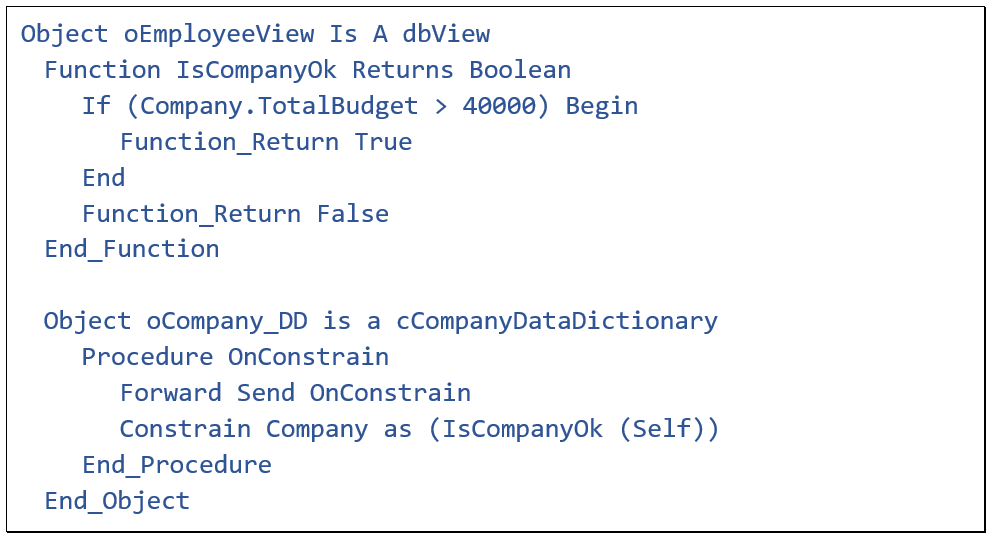
Here is an example. It is important that the function can be located when evaluated. Adding the function to the DDO might result in an invalid message error at runtime because the value of the global variable Self might not have the appropriate value when the constraint is executed in the virtual machine. So, it is better to place your function above the DDO.
pbInheritConstraints
Now something about inheritance of constraints. Rows in child DDOs automatically inherit constraints from their parent DDOs. Now what would happen if a parent is not valid due to constraints set in its DDO. Then its child records are not found. This is not always what you want.
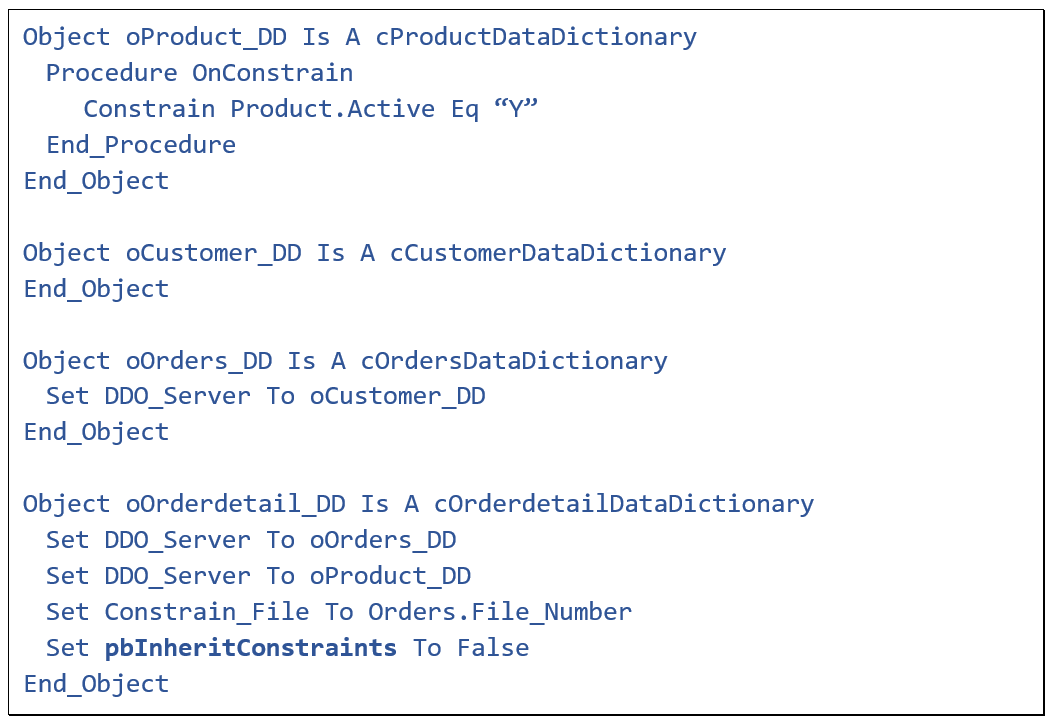 In this code example, there is a child table, OrderDetail, and a parent table Product. So, at the time the OrderDetail record was created, the user could select a product to link it to, but only from active products that the company sells.
Now suppose that over time the products that can be sold changes - for whatever reason - and some of the products, which are part of some orders, are no longer available for selling. Their Active flag is set to False.
The constraint created in the product DDO would result in OrderDetail rows being skipped when trying to find them for a particular Order. This leads to incomplete orders; people getting confused and if they want to add the record again, it is not possible. However, the OrderDetail records are not gone, they are just not found because of a constraint in the Product DDO.
The way to overcome this problem is by setting pbInheritConstraints to false in the child DDO. This setting determines if a main DDO should inherit the constraints from its parent DDOs. When set to False, all constraints in parent table DDs and DDOs are ignored when searching the child table.
Dynamic filtering
Sometimes you might want the filtering to be dependent on some user action, or other changing situation. This is possible, using dynamic filtering. So, change the constraints while the program is running. For example, initially you want to show all Customers, but when clicking a checkbox, it should only show the active customers.
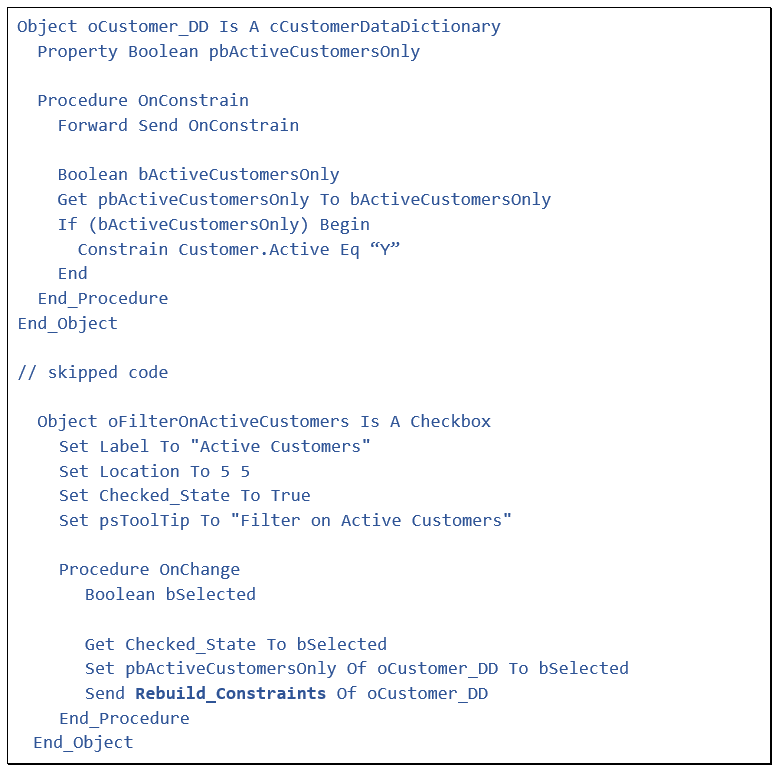 Here is the code example. In the upper part is the DDO, where the OnConstrain procedure does a constrain of the Active flag only when the custom property pbActiveCustomersOnly is set to True.
In the lower part of the code snippet, there is a checkbox and in its OnChange procedure, the pbActiveCustomersOnly property is set according to the checkbox value, followed by sending the Rebuild_Constraints message to the customer DDO. This reconstructs constraints for this DDO.
You should always send this message whenever a constraint is changed. And in case multiple DDOs are affected, you should send this message to all of them. You can also send the RebuildAllConstraints to any of the DDOs within the DDO structure, which will rebuild constraints for all of them and in the right order, which is top-down.

After sending the message Rebuild_Constraints, the DDO might not contain a row that matches the changed constraint. Then it is up to you to send a message to find a valid row or clear the DDO buffer. If data is presented in a list control, you could send a message to refill the list. For a CodeJock Grid control this could be the MoveToFirstRow message.
Constraint optimization
Let’s for a moment talk about the performance of finding the data. Finding a row in a table containing a million rows can be done in either a fraction of a second or in a couple of minutes, depending on the definition of indexes. Now with the use of Constraints, this is no different.
So be aware that applying a constraint can slow down the finding of data considerable and that you might have to create another index for it. If a filter is optimized, the number of find operations is close to the number of found rows.
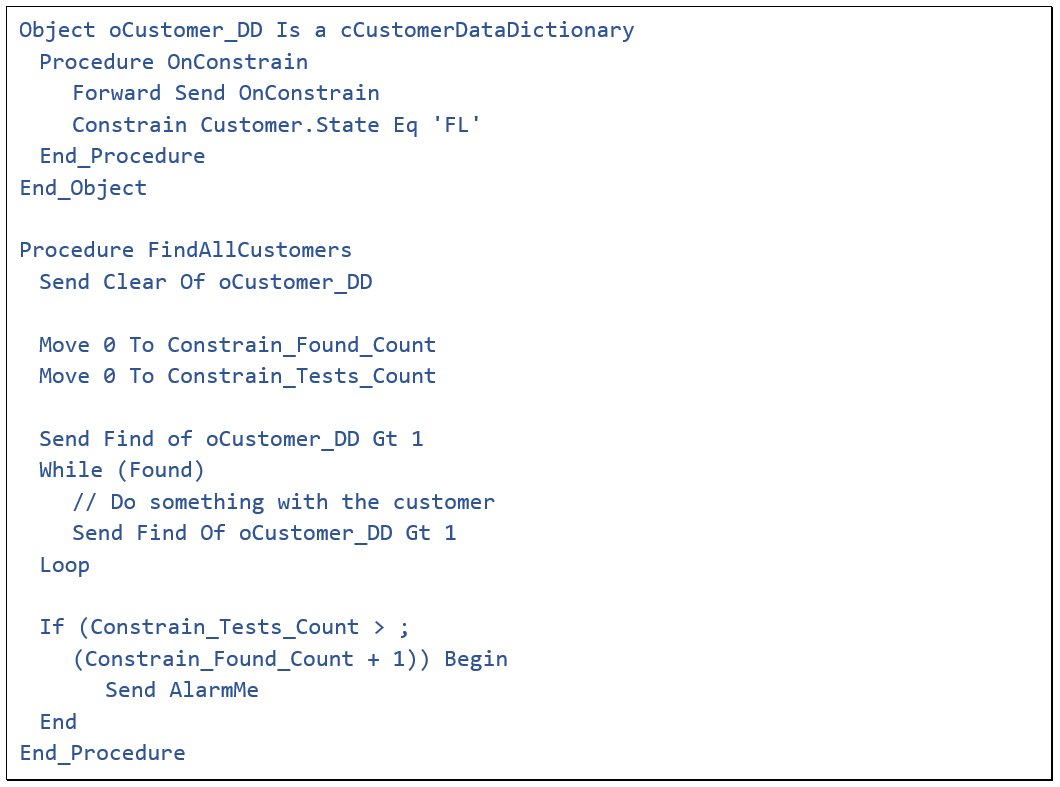
It is possible to assess whether your constraint is optimized. In this code example, a find is done in the Customer table, where a constraint is set on the column State. As you can see, there are two global integers that are first set to zero and after a find loop are tested.
In the loop, the value of Constrain_Found_Count is incremented for each row that matches the constraint, and Constrain_Tests_Count is incremented for each tested record. In the most optimized situation the difference between the number of found rows and the number of tested rows is one. You can use these variables for debugging the constraints. Don’t forget to reset them to zero before starting a search via constraints.
SQL Filter
When using the MSSQL database, you can use additional filtering in an SQL way. You can switch that on by setting pbUseDDSQLFilters to True. By default it is False.
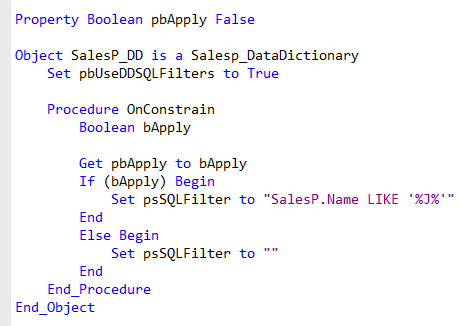
Then in the OnConstrain procedure you can set psSQLFilter to specify a filtering clause string. In this example, the filtering is made dynamic, based on a Boolean property. Please take note that SQL filtering only works for SQL databases. In the embedded database it will give an error when trying to find a record. And while this way of filtering can be handy, it can be slower and sometimes might even cause a full table scan.
The SQL filter will be applied on top of any other constraints. And it is only applied to the DDO that starts the find operation. So, in this example:
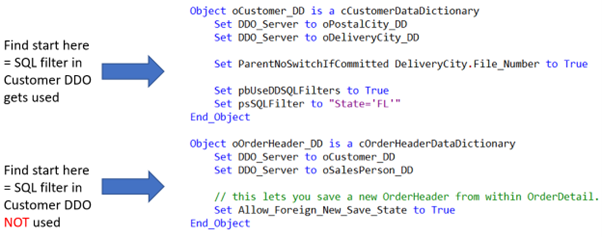
It depends on whether you do a find on the Customer table or on the OrderHeader table, whether or not the SQL Filter for Customer is actually applied.
Okay, that’s it for this lesson and it’s the end of this course on Data Dictionaries. I hope it has been helpful for you and wish you all the best with your programming activities.
