
 REFERENCE LIBRARY


 Getting to know the Data Dictionaries

Data validation is important for reducing the amount of invalid data in your database. Data Dictionaries offer excellent ways to implement validation of the entered data. There are a number of ways to do data validation via the Data Dictionaries, which are:
In this lesson I will discuss them in this order. Which one you need for a particular column depends on what exactly you want to validate.
DD Modeler
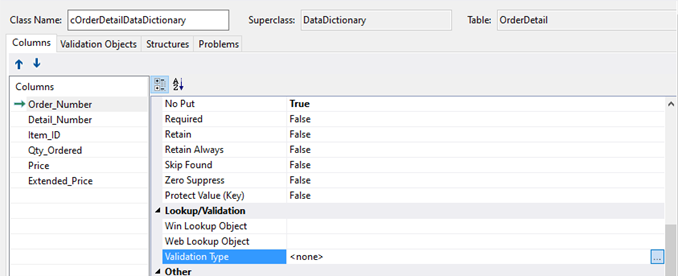
Let’s go to the Data Dictionary Modeler, where you can implement all these validations. In the third category, Lookup slash validation, you can set a validation type for each column, if needed.
Click on the three little dots on the right hand side to open the column validation dialog. Here you can set the type of validation.
Simple validation
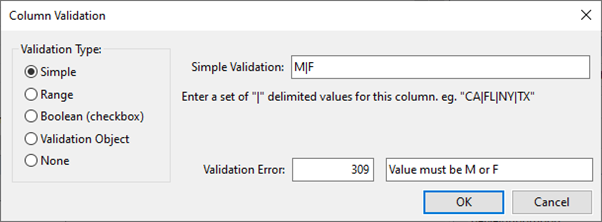
Simple validation is a very basic method. The value that the column contains must be identical to one of the values listed in this input form. Values in the input form are separated with a pipeline character. In this example there are only two values allowed, either an M or an F. Very often the number of values will be limited to 2 to 5. It is also common that the values are only one or two characters wide. Note that all values must have the same length. This option is very useful for values that by themselves have enough description such as the birth gender of a person. The code that will be generated for this setting is like this:

You can also specify an error message and a self-entered error number. User defined errors need to have a number between 120 and 4096.
These validation methods will generate a validation error upon saving when the condition is not met, causing the record not to be saved until a valid value has been entered. An empty value is also not allowed in this case.
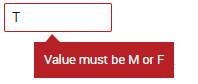
This simple validation method should really be simple. Suppose you would use it for validating the State of the US. There are 50 states. You can do it here, but it is a bit too much. In that case it is better to use a validation table. Later in this lesson I will explain how to do that. Let me now continue with this validation dialog.
Range validation
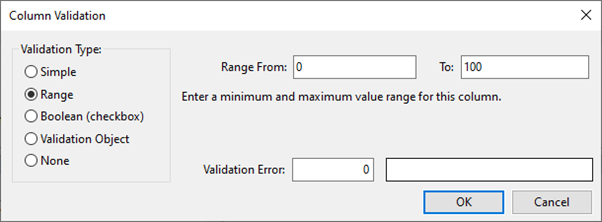
Range validation is for numeric values. For example, for entering a discount percentage that should never exceed a hundred or be negative. Or, as in this example, to set a validation range for the column Credit_Limit to a range of 1000 to 8000, you can set Field_Value_Range in the DD class.


The system will then raise a validation error when the credit limit is outside the range.
Boolean validation
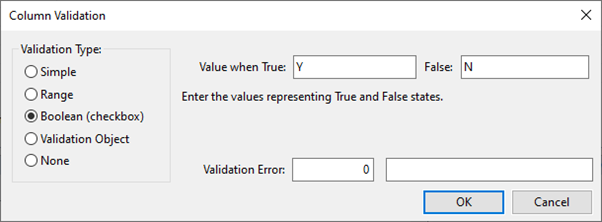
Now back to the column validation dialog. The next validation type is Boolean validation, which is meant for checkbox controls. It can be used to tell the framework to store a numeric value that represents true or false, as a character. So, instead of storing a ZERO for a false situation and a ONE for true, a character like Y and N can be stored. The code to set and get this property is shown here:

Be aware that the Y and N characters are English based and your users may speak another language where there are different characters for Yes and No.
Validation Object
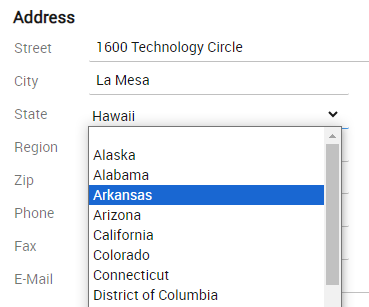
The next validation type is Validation Object. This is meant to validate against a validation table. This is a hard coded table of possible values. It is not only handy for enforcing the entry of valid data, but it is also a nice way to offer a list of values where the end user can select from. Like in this example, where the user can select from a list of US States.
However, a validation table is not always the best choice. For example, you could create list of customer types and define it as a validation table. But when the list of customer types might change in the future, it seems better to create a reference table called Customer_Type and to create a maintenance screen for that. Although you could also choose for a dynamic validation table, as I will show later.
Static validation table
Let’s first look at an example, where it validates the column State against a validation table that contains all the US States. This is a fixed list of values that will never change.
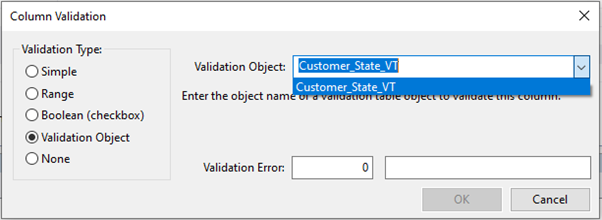
Before setting the validation object here, to validate against, you first need to create that object. To do that, go to the second tab page of the Data Dictionary Modeler.
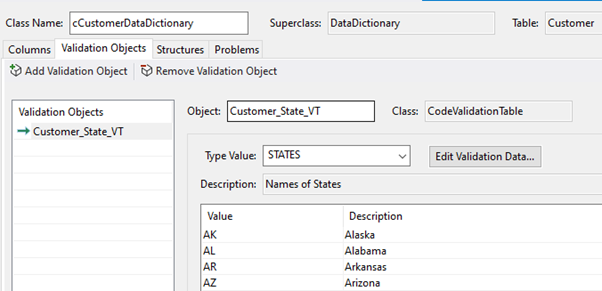
Let me now show you how to create a validation object for validating against a static validation table.
Video example
This is the WebOrderMobile application. Here is the second tab page of the Data Dictionary Modeler, called Validation Objects. It shows that a validation object already exists, called Customer_State_VT. VT stands for validation table.
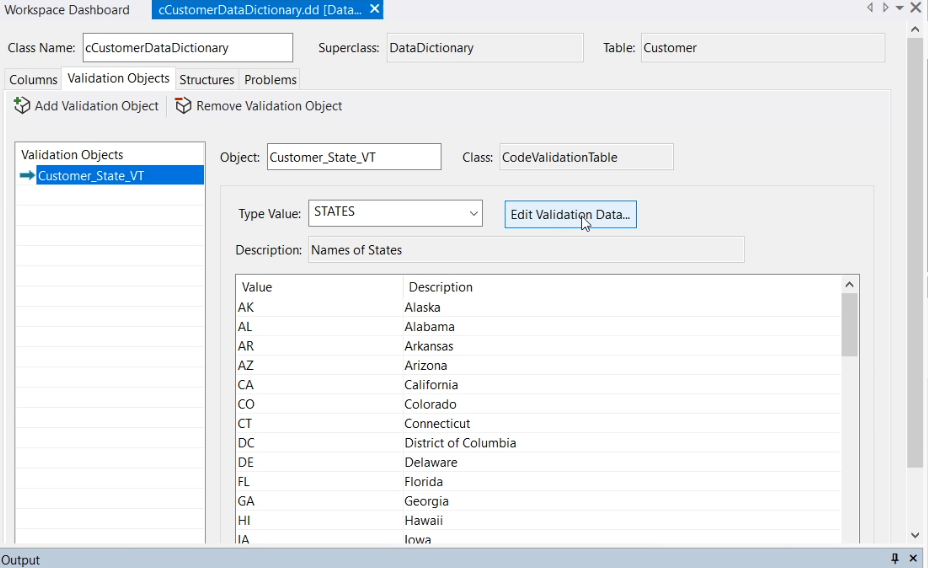
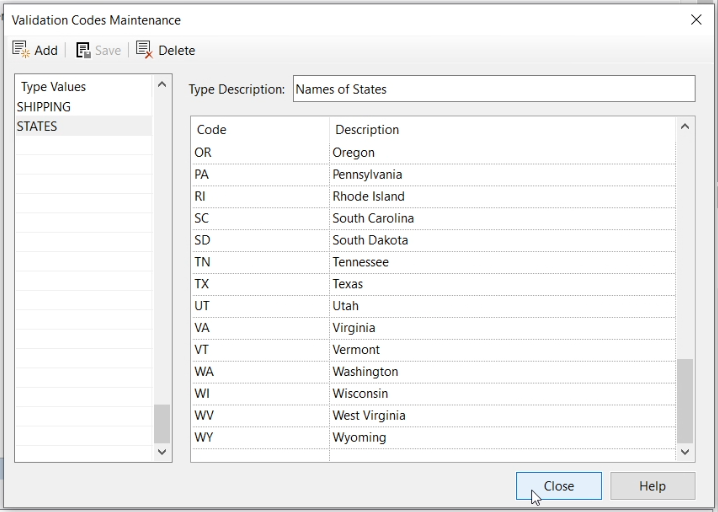
If I click on the Edit Validation Data button I can add, modify or delete the list of States.
Now suppose that I need a new column in the Customer table called Region and I want to create a validation object for that. First I create the column in the table editor. Oops, it says that I cannot create the column.
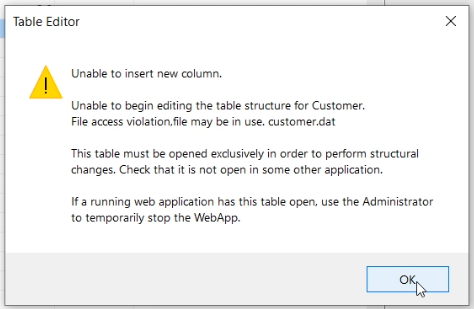
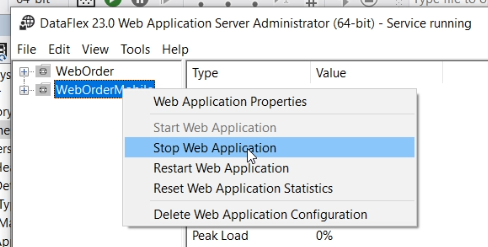
The reason is that I am using the embedded database here, plus this is a web application and it’s running. It’s running in the background. I must stop the webapp. In the menu bar I click on the button to open up the WebApp Administrator. Here is the webapp, WebOrderMobile, and I stop it. Later when I compile the application, it will start it again.
Now the webapp is stopped, I can add the column. I want to have it before the ZIP and call it Region, and make it 2 characters.
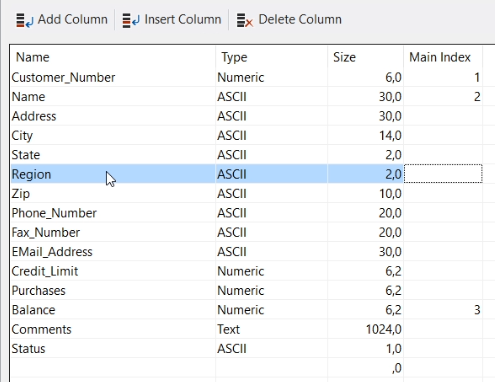
Back to the Data Dictionary, where the column is added to the list of columns. I enter the labels and make it a combo. Switch CapsLock on.
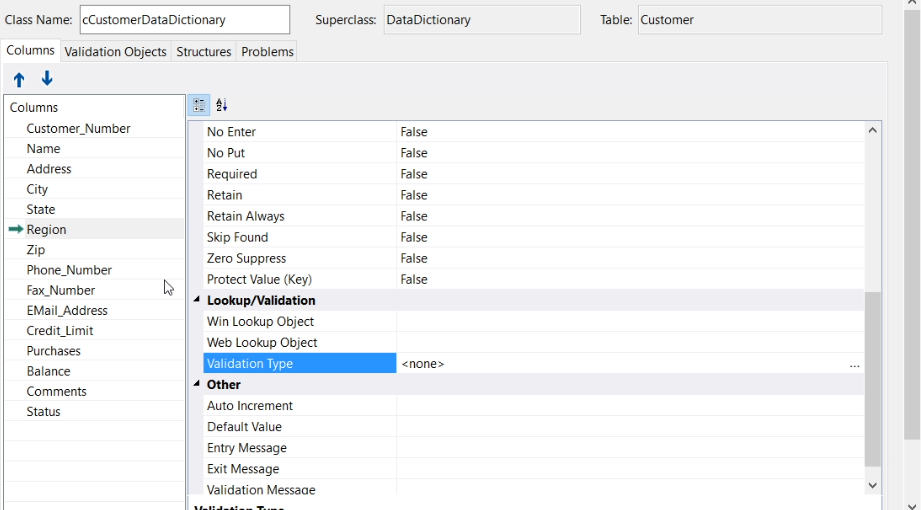
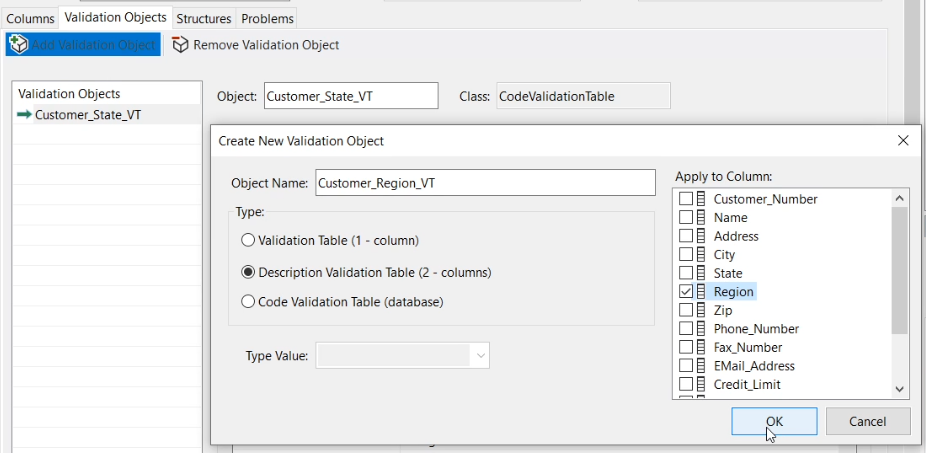
I want to set the Validation Type to Validation Object, but I first need to create the Validation Object in the second tab page of the DD modeler. Add Validation Object. I name it Customer_Region_VT. Then I choose a type. The first one, validation table, would be just a simple list of values. The type I want is a Description Validation Table, which means that a description is shown, but a 2 letter code will be stored in the database. On the right I can select all the columns of the table that this validation table could be used for. I select Region. And click OK.
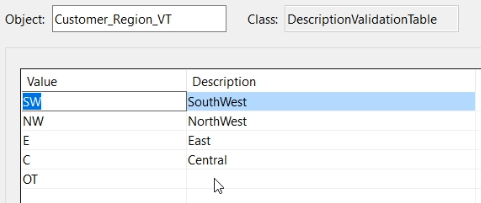
I enter the values and descriptions.
Now back to the first tab page of the DD Modeler. Since I already indicated which column this is about, it has already filled in the Validation Type for the Region Column. Else I could have selected it.

I press F7 to view the source code of this DD. Here is the validation table I just created. It is an object of the class DescriptionValidationTable.
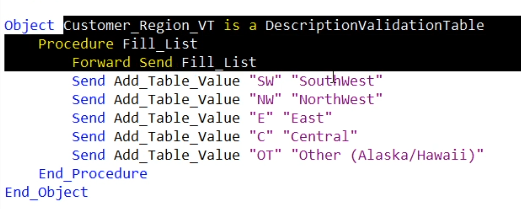
I’d like to give it a title ("Regions"), which is used for situations where the values of the validation table can be selected from a popping-up list or dialog.
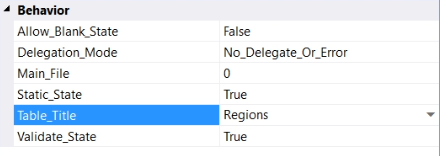
If I search on Region_VT, I find that Field_Value_Table of Customer.Region is set to connect the column to the validation table.

Now I want to use this column on the webview. I open the source, ZoomCustomer.wo, and press F7 to view the WebApp Designer.
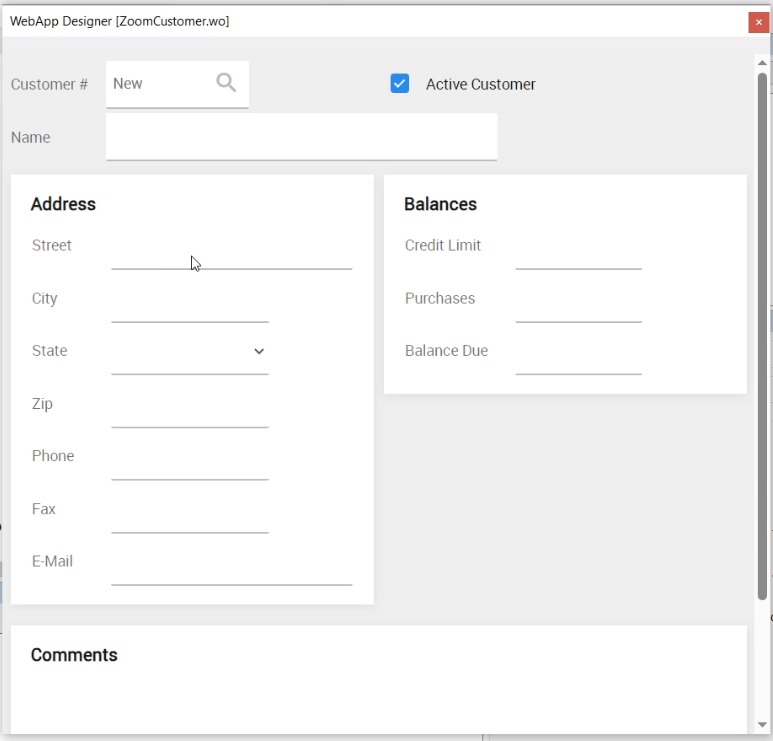
And I open the DDO Explorer. I click the Region column and drag it to the desired spot.
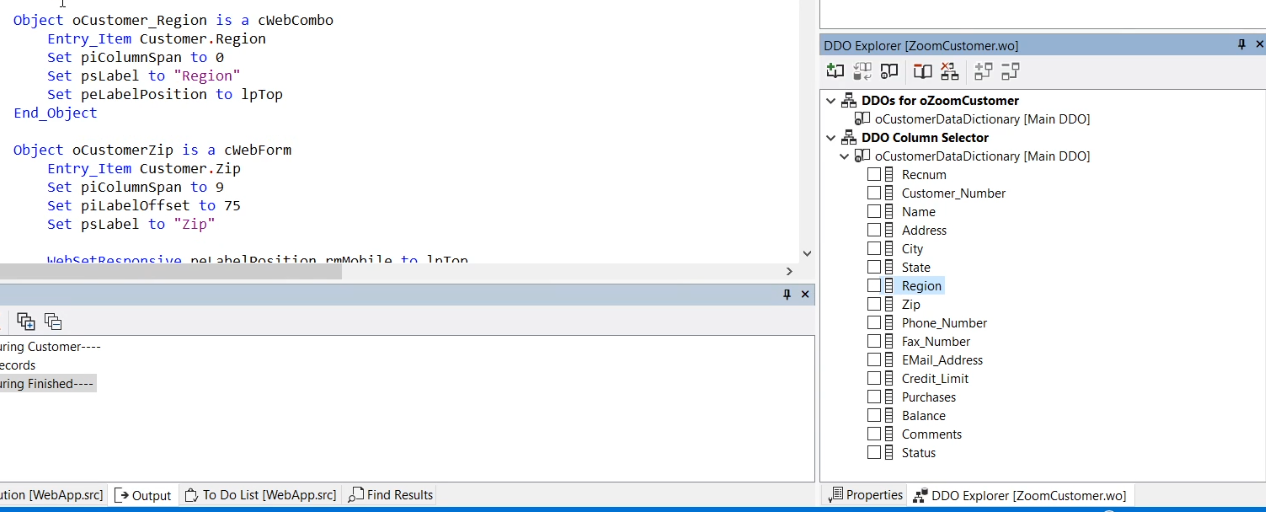
Set piColumnSpan to 9 and Set piLabelOffset to 75. I could also press Ctrl + the 2 key to open the Properties of this control and set it there.
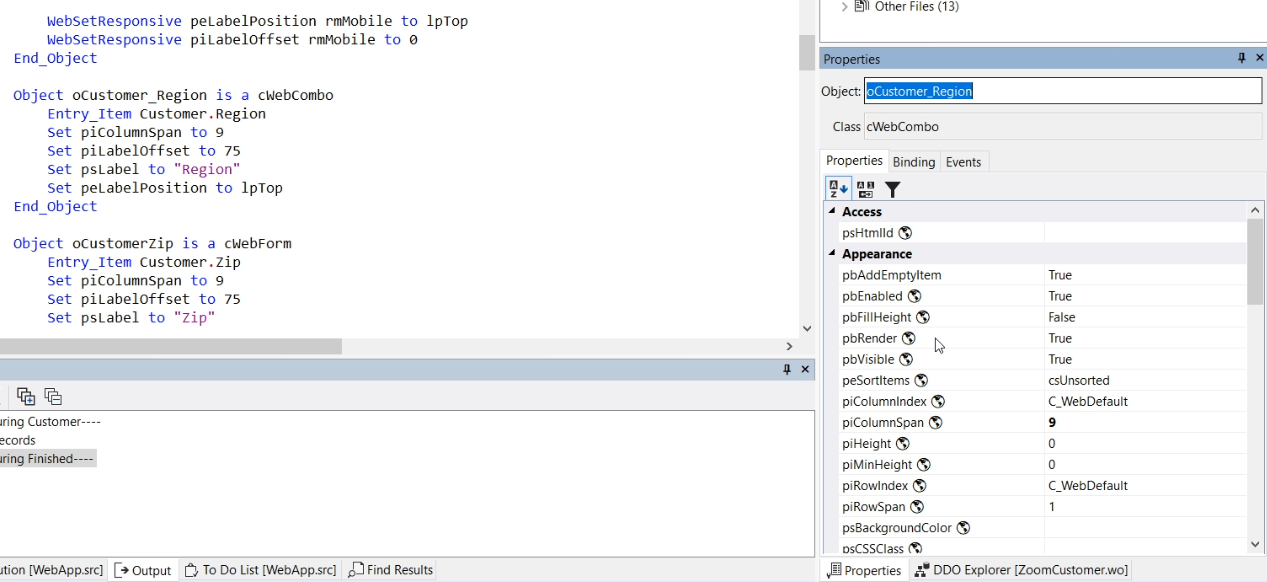
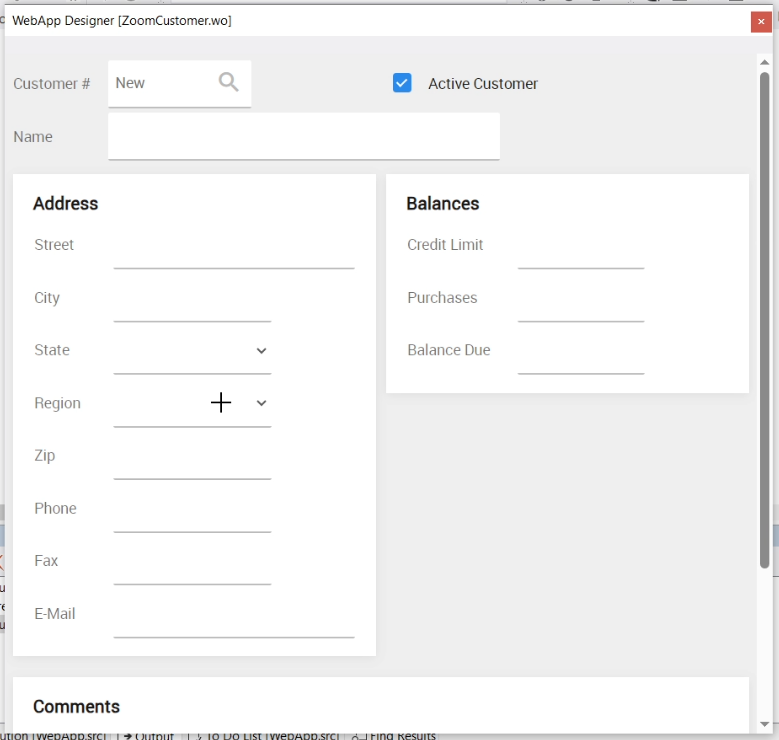
In the Label category I set peLabelPosition to lpLeft. Now it looks nice.
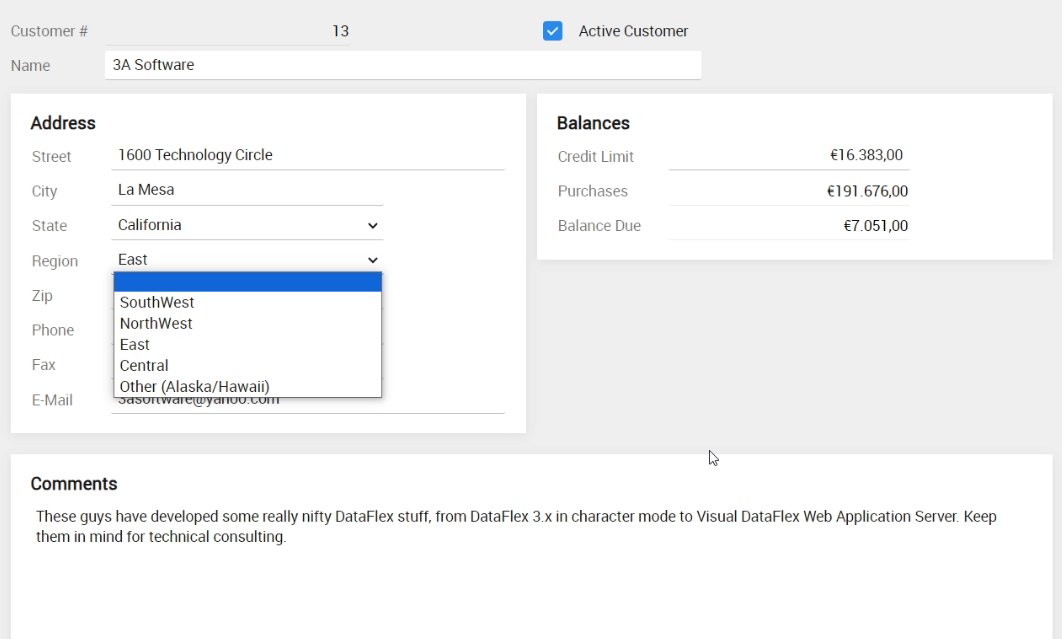
I compile and run it by pressing F5. I go to the Customer Entry screen and select a customer. Now there is the Region combo, and the dropdown contains the descriptions where I can select from.
System table validation
Instead of having the list of values in the source code, you can also have them in a table. In the next example I create a validation list for size category, which is a value that will indicate how large the customer company is.
Video example
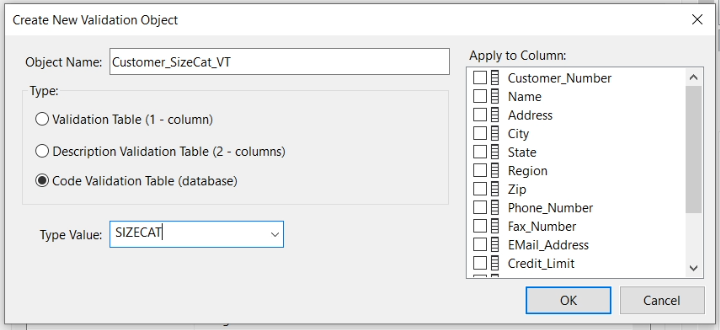
Here is the dialog to create a new validation object, called Customer_SizeCat_VT. As Type of validation object I select Code Validation Table and enter a self-named Type Value, SIZECAT in this case. And click OK.
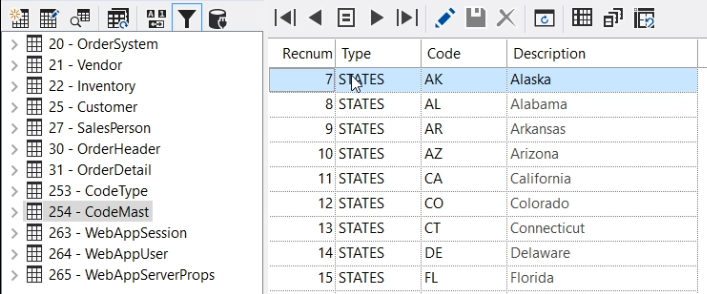
I click on the Edit Validation Data button and see that there are already two other validation lists stored in a table, for Shipping method and for States. I create a third one for the Size Category, and I enter some values.
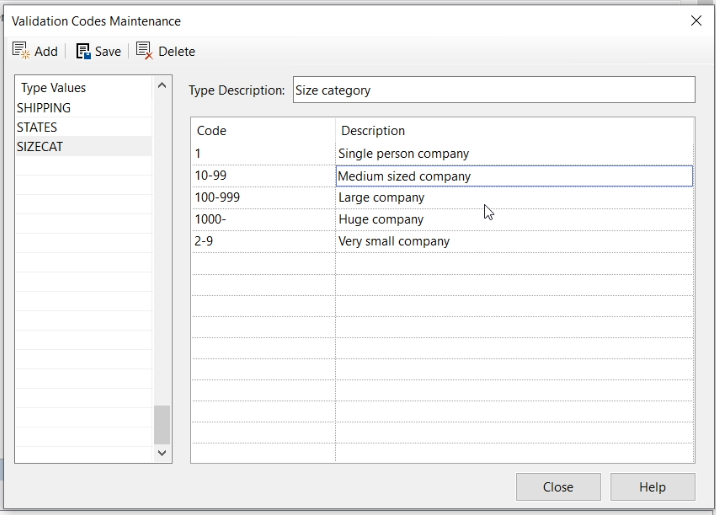
Now if I go to the code, it shows that the validation table is created as a CodeValidationTable object.
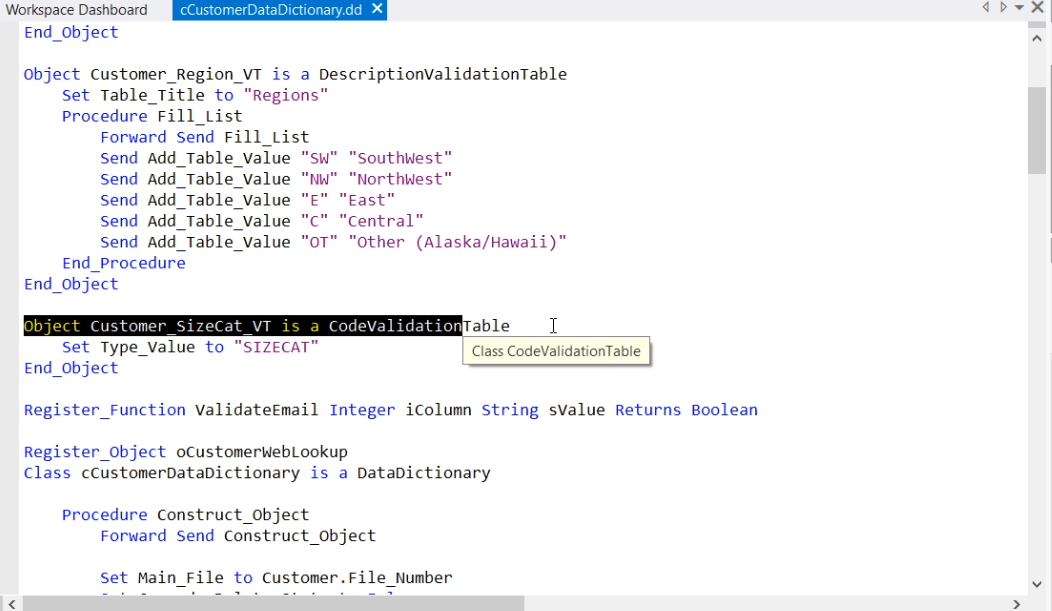
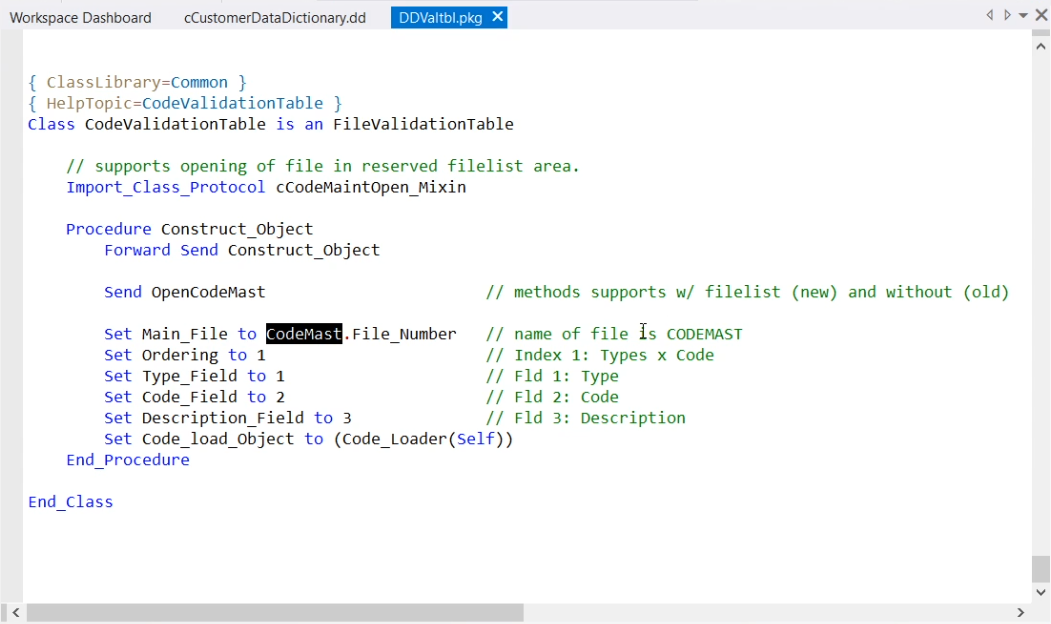
I can go to the definition of the CodeValidationTable (right mouse click) and see that this is an extension of the class FileValidationTable, which in the end is also an extension of the class DescriptionValidationTable. If I press Ctrl Shift Q, I go back one step, to have a look at the CodeValidationTable class. Here it is defined where the values of the validation table have gone. They are in the CodeMast table. Together with the CodeType table, these two system tables are always defined when the application is created.
Let’s have a look. Here are the shipping values, the states, and now also the SizeCat values I just entered.
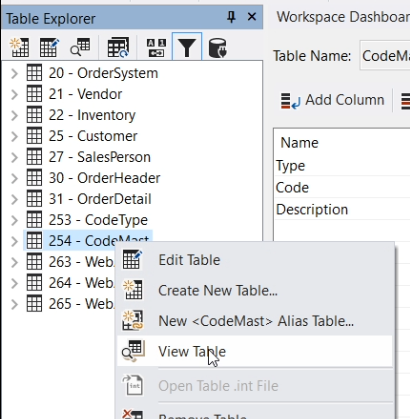
The CodeType table just has the names and descriptions of the three validation tables. As you can see, the Region table is not one of them, that one is defined in the source.
Dynamic table validation
So, this is almost a dynamic validation table, since it really is a table. But it is a system table that should not be directly managed. But using this strategy, we could create a true dynamic validation table. As I said, the CodeValidationTable class is an extension of the FileValidationTable class. You could use the FileValidationTable class directly to connect to another existing table, making it a true dynamic validation table! See the example next to me.
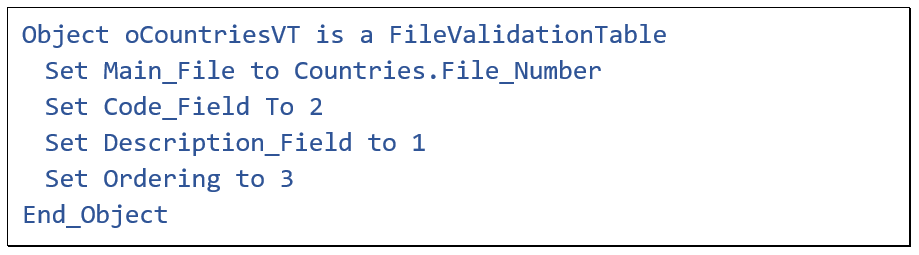
Here we make use of an existing table called Countries, which is a reference table, for which we could implement a maintenance screen. Code_Field is the column number of the country code, Description_Field is the column number of the country description. And, optionally, the Ordering property can be set to read the data in a certain order, according to a particular index.
Validate_Save / Validate_Delete
OK, that was all I had to say about validation tables and about the Validation Type section of the Data Dictionary.
Now I’d like to discuss the Validate_Save and Validate_Delete functions. These are functions that are part of the Data Dictionary class, but are not implemented by default. You would have to write them yourself in the DD class. They are intended for doing a very last validation before doing the actual save or delete to the database.
The Validate_Save function of the Data Dictionary class is called when a row is about to be saved. At that moment, the database is in a locked situation, which means that user interaction should be avoided. The Validate_Save function is mainly intended for running tests that cannot be performed while the database is not locked. For example if the current stock for a product needs to be checked
