
 REFERENCE LIBRARY


 Getting to know the Data Dictionaries

Now we know a little bit about what Data Dictionaries are and where you can find them and make changes, let’s see how they can be applied into your application. Because… even when we have Data Dictionaries, you can still ignore them and NOT use them. But that’s not the idea of course.
Data Dictionaries are applied in an application by creating Data Dictionary Objects (DDOs) in components. So, we create instances of the Data Dictionary classes.
Purposes of DDOs
At runtime, these DDOs serve two main, but distinct purposes:
An application may contain many components; each one containing its own encapsulated set of Data Dictionary Objects. And each Data Dictionary Object being an instance of a Data Dictionary class, with its own rules defined at the class level, that can be created and maintained using the Studio’s Data Dictionary Modeler.
So, when you are building your Views, Reports, other Web-Objects, etc. you need not worry about all these Data Dictionary rules. You can just rely on the Data Dictionary class to protect you against invalid operations and maintain well-coordinated data.
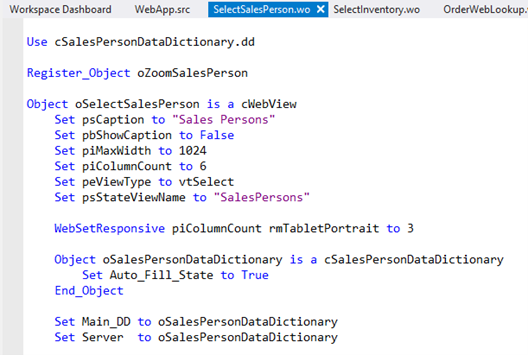
This is the WebOrderMobile example application. Here you can see that within the webview object, there is an Object called oSalesPersonDataDictionary. This is a DDO, a Data Dictionary Object. In this case it is an implementation of the cSalesPersonDataDictionary class. In this DDO, a property Auto_Fill_State of that Data Dictionary is set, to deviate from the standard Sales Person Data Dictionary. Also, the Main_DD of the webview object is set to this Data Dictionary. The use of Main_DD is to identify the DataDictionary Object that controls the database table whose data is central to this object's function, the web view in this case. Main_DD must be one of the DDOs contained within this object. So, oSalesPersonDataDictionary in this case.
Main_DD / Server
The view in this example has a very simple DDO structure, with only one Data Dictionary object. But DDO structures can be more complex and contain multiple Data Dictionary objects, to provide coordinated database activity.
In most cases the Main_DD and Server are set to the same Data Dictionary. But views can be much more complex. They can have data-aware grouping containers, such as dbGroup, dbContainer3D or dbTabDialog, inside the view, each of which have child DEOs. While there can be only one Main_DD set in the component, typically, a Set Server statement could be programmed at each of these container levels, but that is only needed when the container uses a different DDO. The Studio will actually help you with this when creating views via the wizard or when dragging table columns from the DDO Explorer, as we will see in a minute. Set Server is of importance for instructing where request_save and request_delete are handled.
DDO Explorer
Okay, at this point, I assume you know how to create and modify a Data Dictionary for a table. You can do this from the Table Explorer and use the Data Dictionary Modeler or code it. Actually, when you create a new table in the Studio or connect to an existing database, the Data Dictionary classes are automatically created for you.
And at this point, I have not gone through all the ways to modify the Data Dictionary class and make it behave the way you want. That will be discussed in lesson 3 and later. First I want to make clear how to apply existing Data Dictionaries into your components.
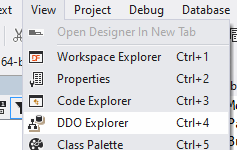
You could code Data Dictionary Objects manually in your components, similar to the code example I just showed. However, there is an easier way. And that is by using the DDO Explorer. The DDO Explorer displays an overview of the Data Dictionary Objects in the current file. This file could have an implementation of for example a web view, a dialog or a report, being the main component of that file. To open the DDO Explorer, press Ctrl and the 4 key. Or go to the Studio Menu, View, and click DDO Explorer.
You can use the DDO Explorer to build or modify the structure of the DDO and also to create data entry objects, for binding controls to table column data via DDOs. A data entry object, DEO, is an edit control that is bound to a field in a table. These data entry objects should be placed into a container object, often the main component of the file, that is designed to handle DDOs, such as:
DDO Structure
The rules for assembling DDO structures are the same for all of these containers. Each Data Dictionary object must be created and properly connected to the structure. This is done through child DDOs creating links to their parent DDOs. Parent-child relationships in Data Dictionaries are discussed in length in lessons 7 and 8.
One thing to be aware of is that any coordination of data entry objects within a container does not come about as a result of the fact that the objects reside in the same container. No, the coordination occurs if, and only if, the DDO structure is properly interconnected and each Data Entry Object is connected to the proper DDO.
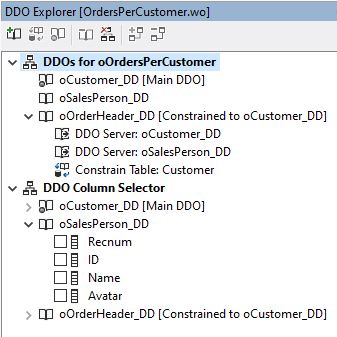
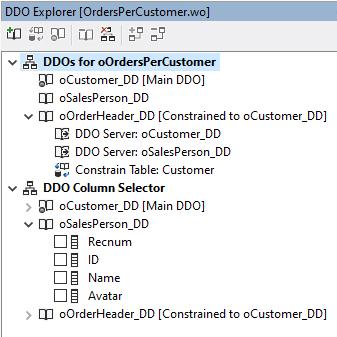
Here is an example where there are three DDOs, for the Customer, Sales Person, and Order Header tables. Different elements of the column selector are represented by different icons in the tree. Here is a list of the icons and their meaning:
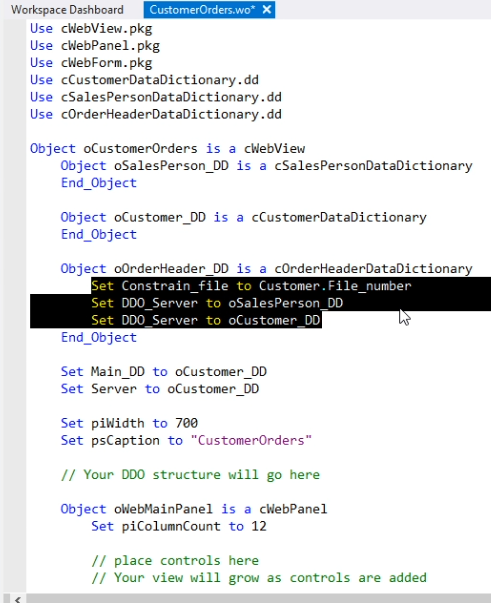
The Customer DDO is the main DDO. The OrderHeader DDO has two parent DDOs defined, indicated by the property “DDO Server”. So, this property is set in Child-Table DDOs to connect it to a parent or multiple parents. This property is set only for immediate parent DDOs, not Grandparent-DDOs or so. Those should be connected via the parent DDOs. I’ll tell you more about parent/child relations in lesson 7.
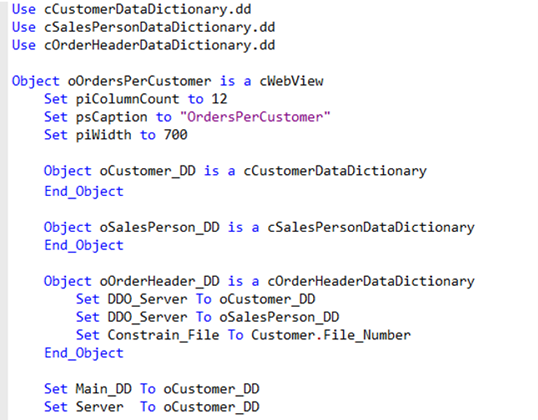
As you can see, OrderHeader is constrained by the Customer table, which means that it will only display Order Header records that belong to a particular Customer record. Let me switch to the code editor for a moment, so you can see the actual code:
Main_DD
There must always be a main DDO, Customer in this case. It is the focal point for database operations that are performed in this component. In some cases, the main DDO will be the child-most table in a relational structure.
In other cases, the main DDO will be in the center of data dictionary structure - for example, an Order Header main DD with a Customer parent DD and an Order-Detail child DD.
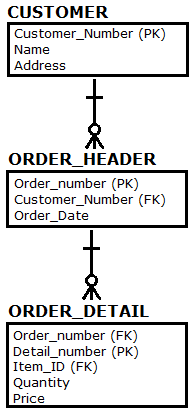
When a main DDO has child-table DDOs, these children are almost always constrained to the main Data Dictionary (for example, the Order Detail can only show records that are related to the current Order Header). The Studio uses this knowledge to determine how child/parent constraints should be enforced.
A general rule of thumb in determining what should be the Main DDO for a component is to ask: What is the main data processing purpose of the component? For example, for a customer maintenance view, the customer DDO is the main DDO. For an order entry view, you want to display one order header at a time; you also want to display only order details relating to the current order header. This means that the Order Header table will be the main DDO.
DDO Explorer
OK, back to the DDO Explorer. The second root item in the DDO Explorer's treeview comprises the DDO Column Selector. The Column Selector simplifies building components that display data from a database. It enables you to create data-aware controls for the columns of a database table by dragging their names from the Column Selector’s list and dropping them onto the component at their desired locations in the visual designer.
To create a DEO based on one column simply click on the name of the column and drag it to the designer. To create DEO’s for multiple columns at the same time simply click the checkbox next to the column names and start dragging onto your component.
Now here is the thing that makes it easy: if you start with a new component, the easiest way to get the DDO structure right, is to first open up the DDO Explorer and simply add the table Data Dictionaries you need for that component. It will then automatically create the correct the DDO structure for you and often that is all you need. Let me show this.
Video example:
Open the DataFlex Studio with the WebOrder project. I do Create new, Web Object, and select Web View, to create a new Web View in which I want the user to select a customer and then view all its Orders.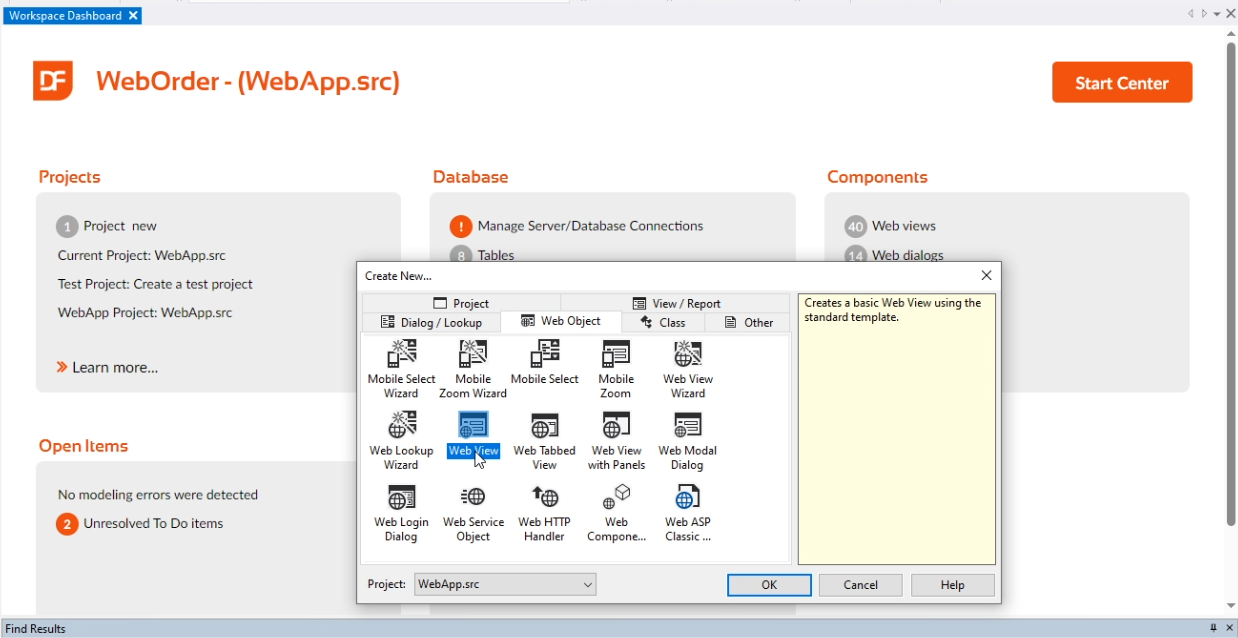
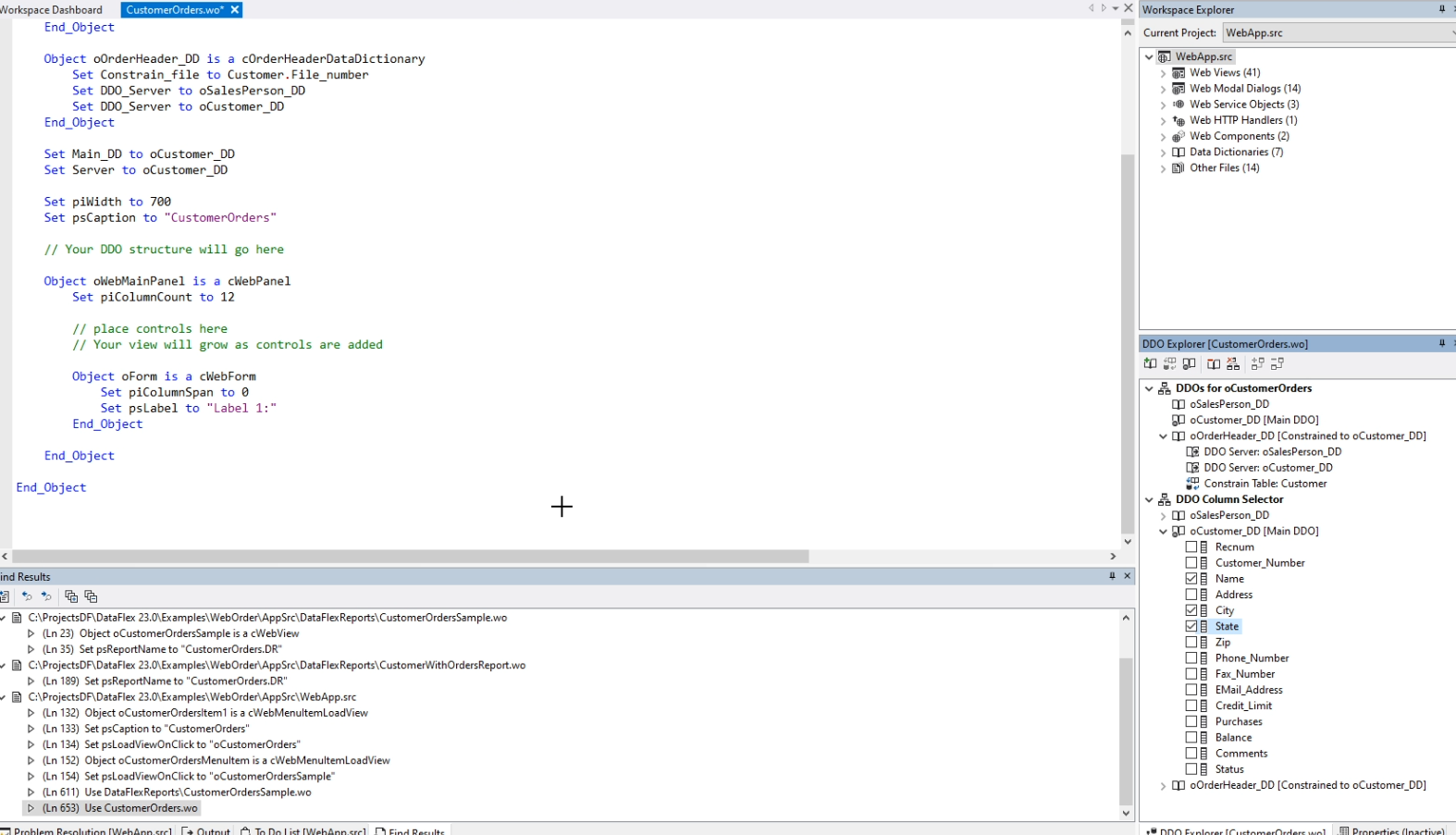
I name it oCustomerOrders. Now the generated code already has a comment saying: “Your DDO structure will go here”.
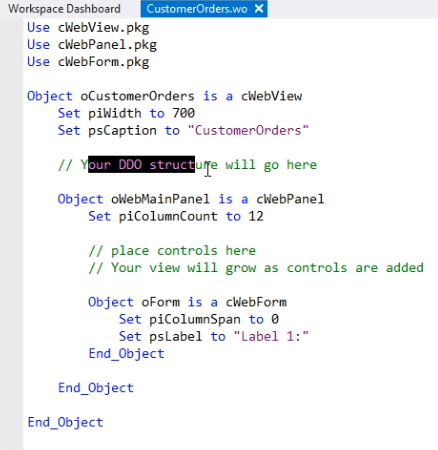
Although I could type that in here, I will use the DDO Explorer to generate the DDO structure. On the bottom right hand side, I open up the DDO Explorer. It is currently empty.
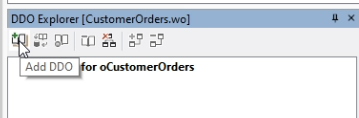
I click on the menu icon to add a DDO. In this case I want OrderHeader and click “Select”.
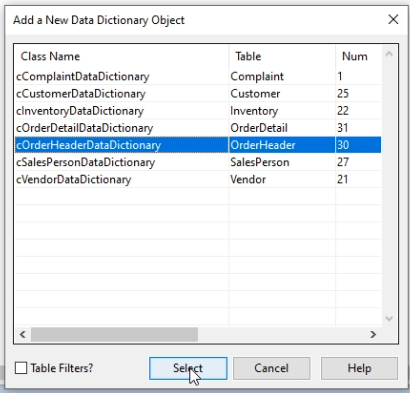
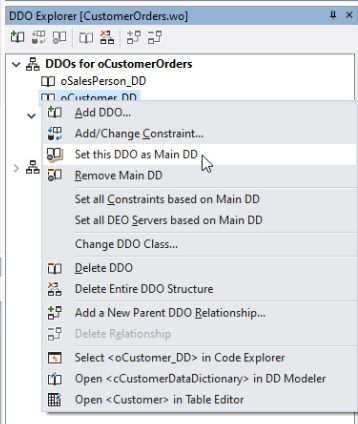
It will now not only create a DDO for OrderHeader, but it will create the complete DDO structure of OrderHeader with its parents, which are SalesPerson and Customer. As you can see, it made OrderHeader the Main_DD, but I want the Customer to be the focal point for this web view. So I right-click the Customer_DD and say ”set this DDO as main DD”.
You can see the code it has generated. It has three Data Dictionary Objects, the Main_DD and Server are set to Customer_DD. In the OrderHeader DDO there is code that links it to the other two DDOs. DDO_Server makes the link to the parent. And Constrain_File has the result that the finding of records in the OrderHeader table is limited to records that belong to the current Customer.
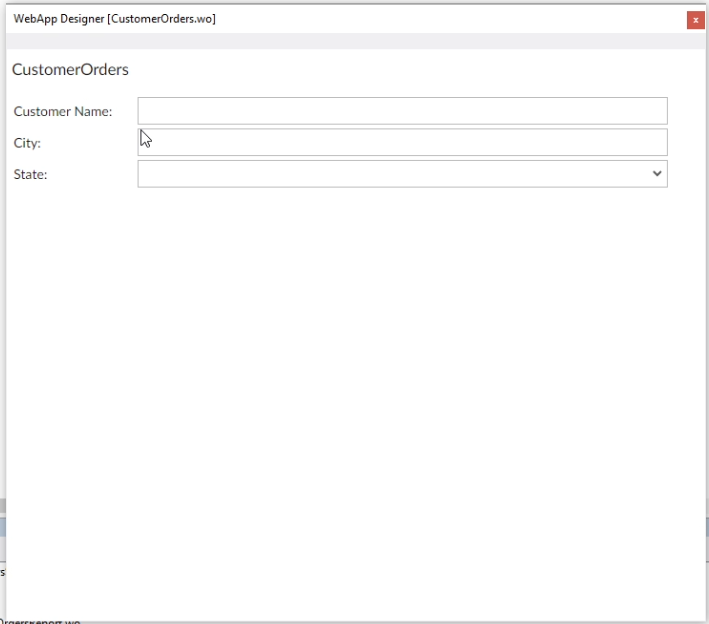
Now I can select fields from the DDO Explorer and drag them to the code editor. I select Name, City and State, and drag them here where it already says “Place your controls here”.
Click F7 to see what it looks like. I’ll remove the label1 form.
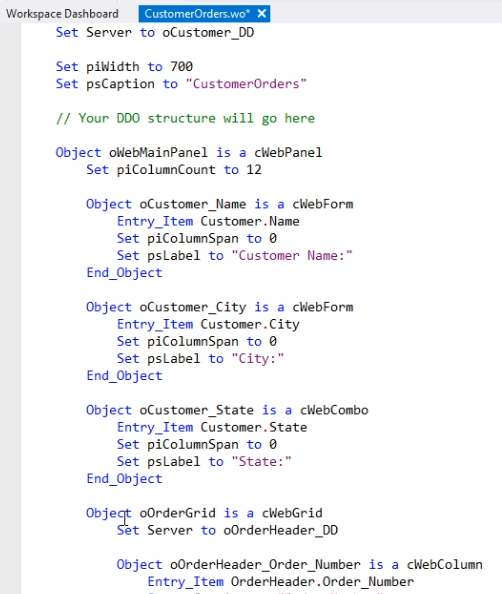
Now I create a webgrid to display the OrderHeader records. I type in
Object oOrderGrid is a cWebGrid
Set Server to oOrderHeader_DD
End_Object
Now I simply select fields from the DDO Explorer, from OrderHeader, and drag them to the new webgrid. Here they are.
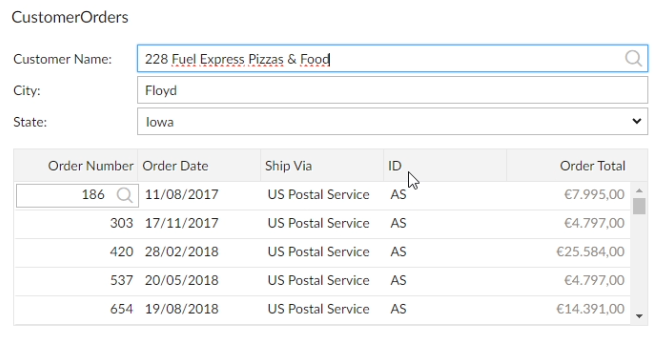
The designer shows how it looks like. I now compile and run it. And you see that it works.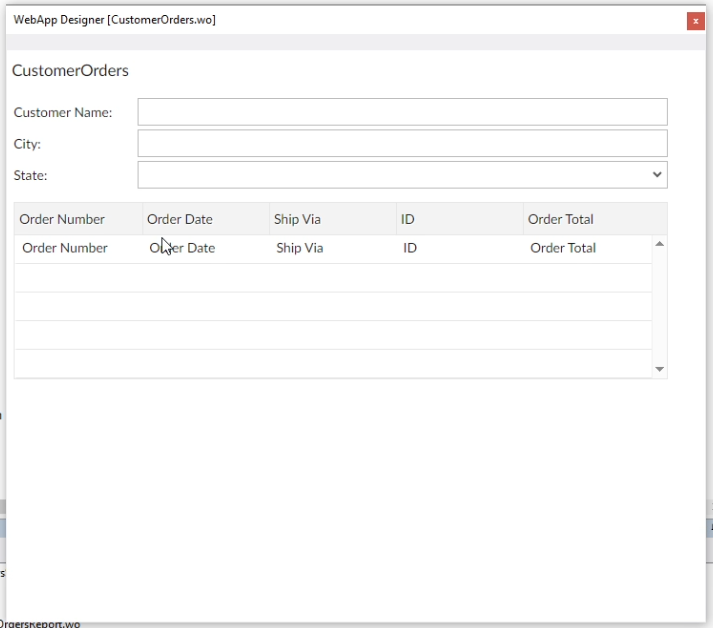
Let me just show one more thing. I did not define the order in which the order records are shown. Therefore it is sorted on index 0, which is recnum, which is the order in which records have been created. Let me just change that to sort on the Sales Person. In the DDO, I add this line of code:
Set Ordering to 4// index 4 is SalesPerson_ID
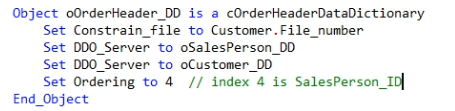
And run it again. Now it sorts on the Sales Person.
DDO vs DD
Now you have created the DDO structure in a particular view, dialog or other component, you can add logic into the DDO that should go with the component, such as data entry behavior and validations. However, it is advised to think twice about putting the logic into the DDO. You should only do that when the logic is really specific for that component. In most other cases, it is advised to put the logic in the Data Dictionary class, the central place for defining logic. This way, other components, which you may not even have thought of yet, will also profit from that logic.
So, to recap: DDO structures, when properly assembled, provide synchronized access to a full set of hierarchical data. Messages are propagated, as needed, between various Data Dictionary Objects, providing consistent and proper behaviors for your find, clear, save and delete operations. In addition, these structures are validated as being complete before you are allowed to change data.
Now let’s move on to Column settings and the Data Entry options in the next lesson, which is a first step to implementing your Data Dictionaries the way you want them to work.
